Overview
Overview
HAVN keeps open-house work in one calm workspace: prepare the property, collect visitor details, qualify leads, follow up, and report back to the seller.
Get started
Get Started
- Create or join your HAVN workspace with the email connected to your agency.
- Complete your profile, phone number, agency details, and notification preferences.
- Create your first property with address, photos, facts, private notes, and public details.
- Schedule an opening from the property and test the visitor sign-in flow before guests arrive.
- After the opening, review contacts, prioritize leads, send follow-ups, and prepare the seller report.
Help Center
Help Center
Choose a product area, then open a focused article. Each article is its own page with the action image, steps, and quick notes.
For iPhone and Android workflows during showings and follow-up.
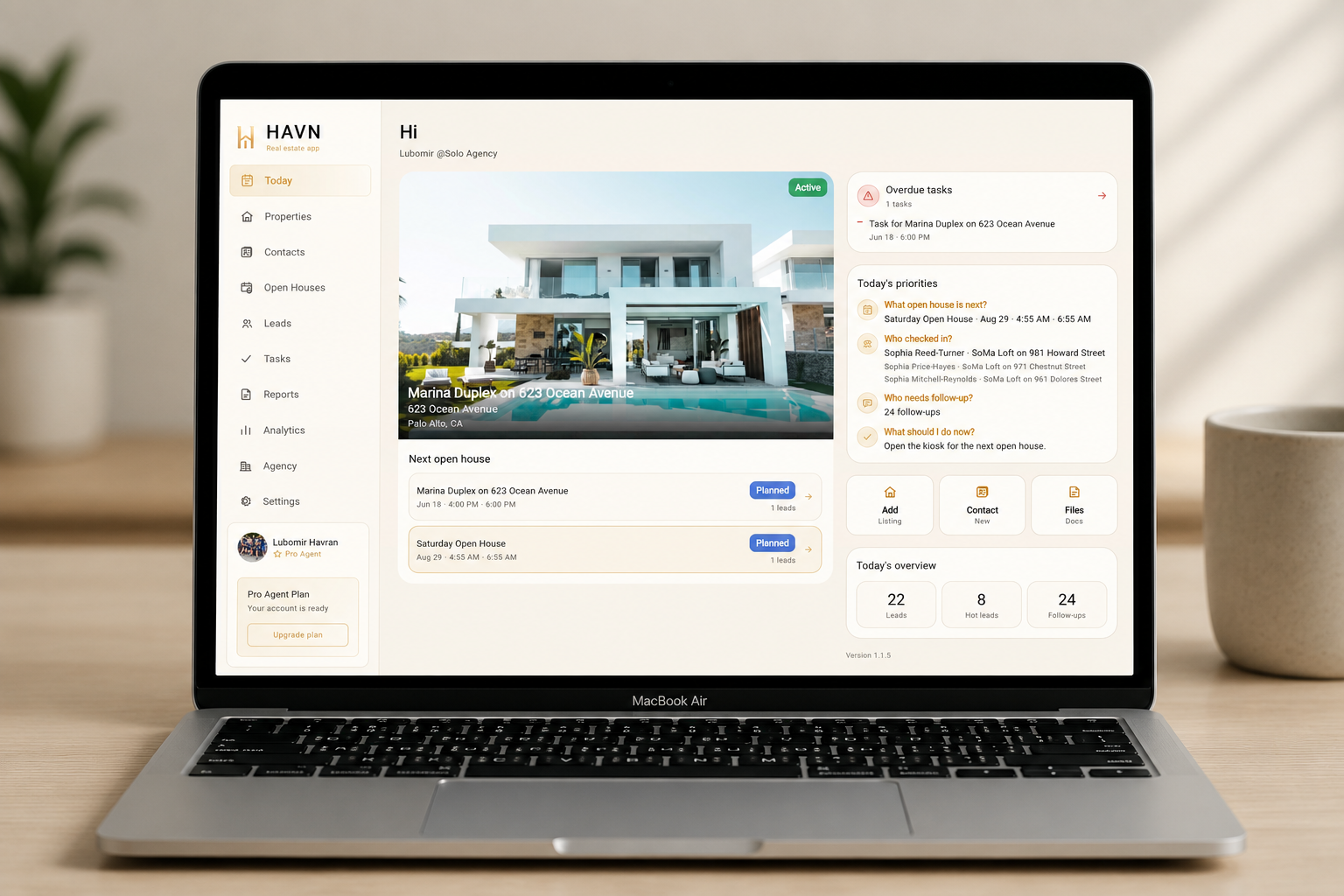
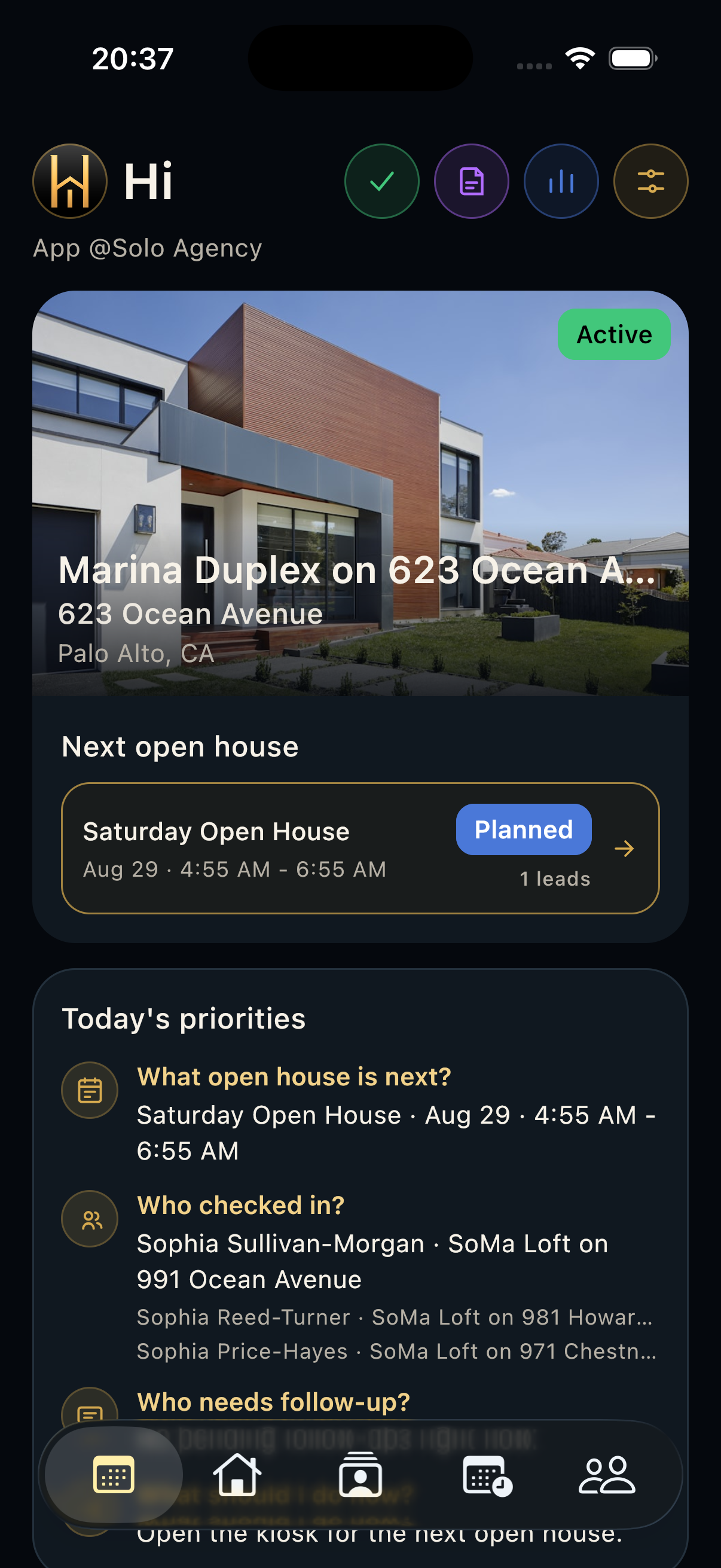 Mobile App manual A detailed phone manual for the shared HAVN workspace: Today, Properties, Contacts, Open Houses, Leads, Tasks, Files, Seller reports, Analytics, Agency, and Settings. Today Use Today as the command center for the active property, next open house, overdue work, priorities, quick actions, workspace shortcuts, and overview metrics.
 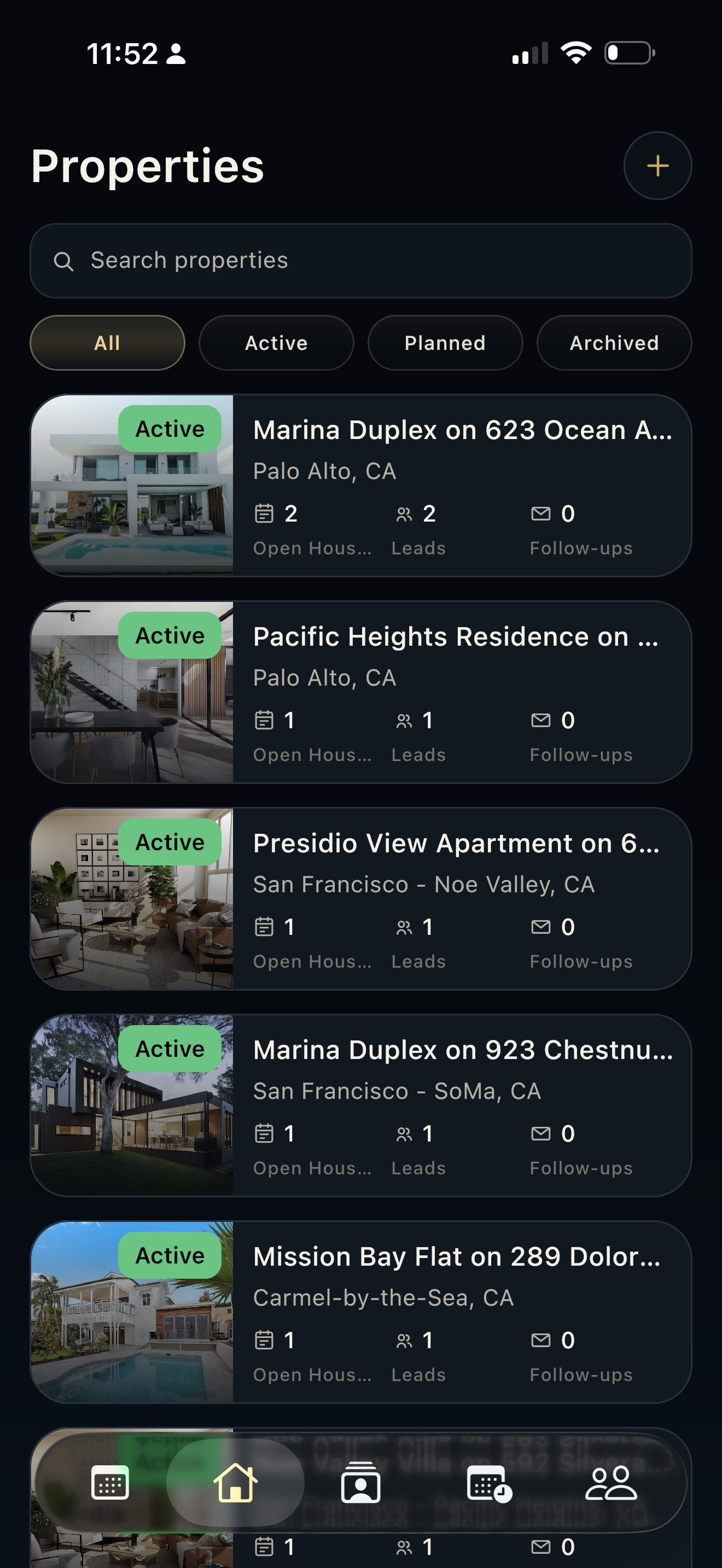 Properties Use Properties to search listings, filter by status, create or edit properties, and open the detail record that feeds openings, leads, tasks, files, reports, and analytics.
 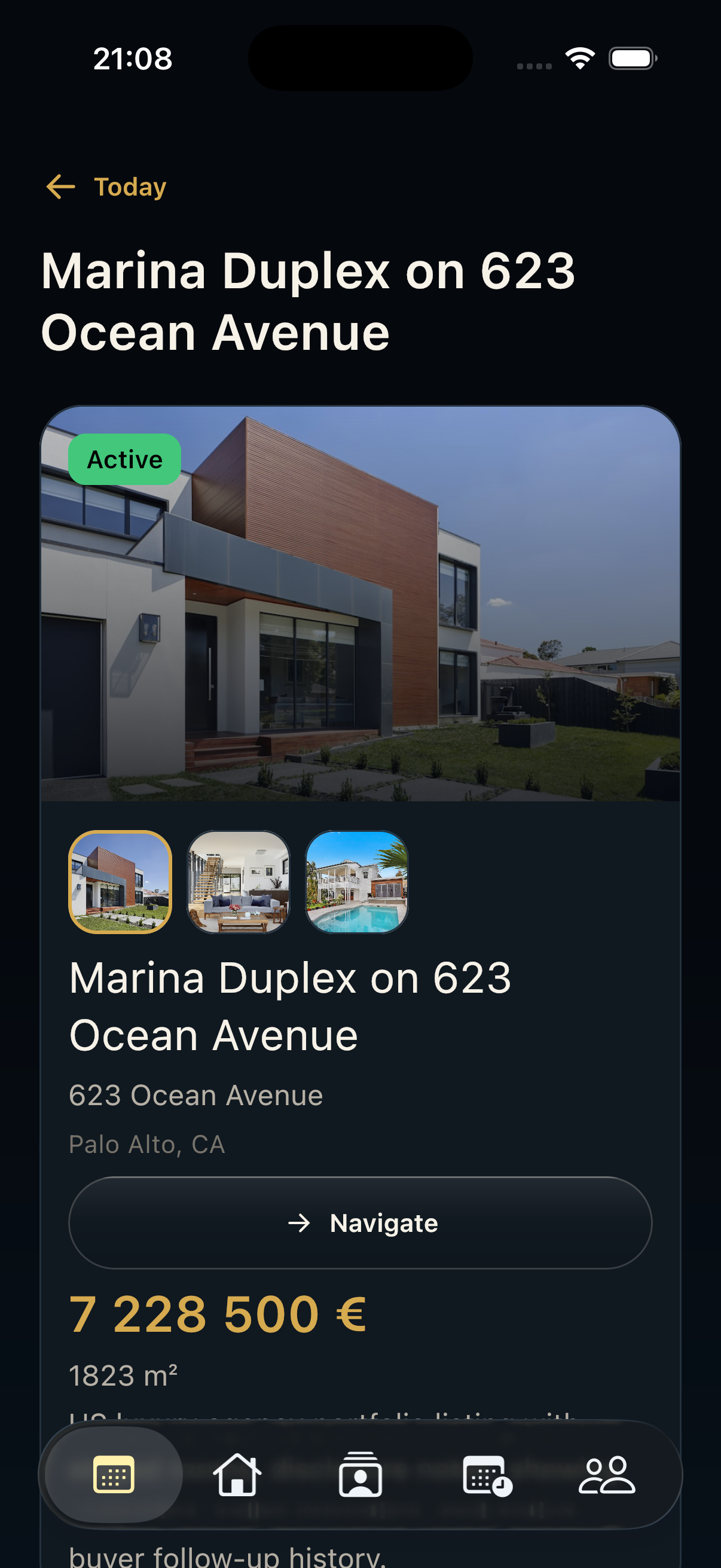 Property detail Use Property detail to verify listing identity, photos, location, owner context, open houses, leads, files, linked tasks, and seller-report readiness.
 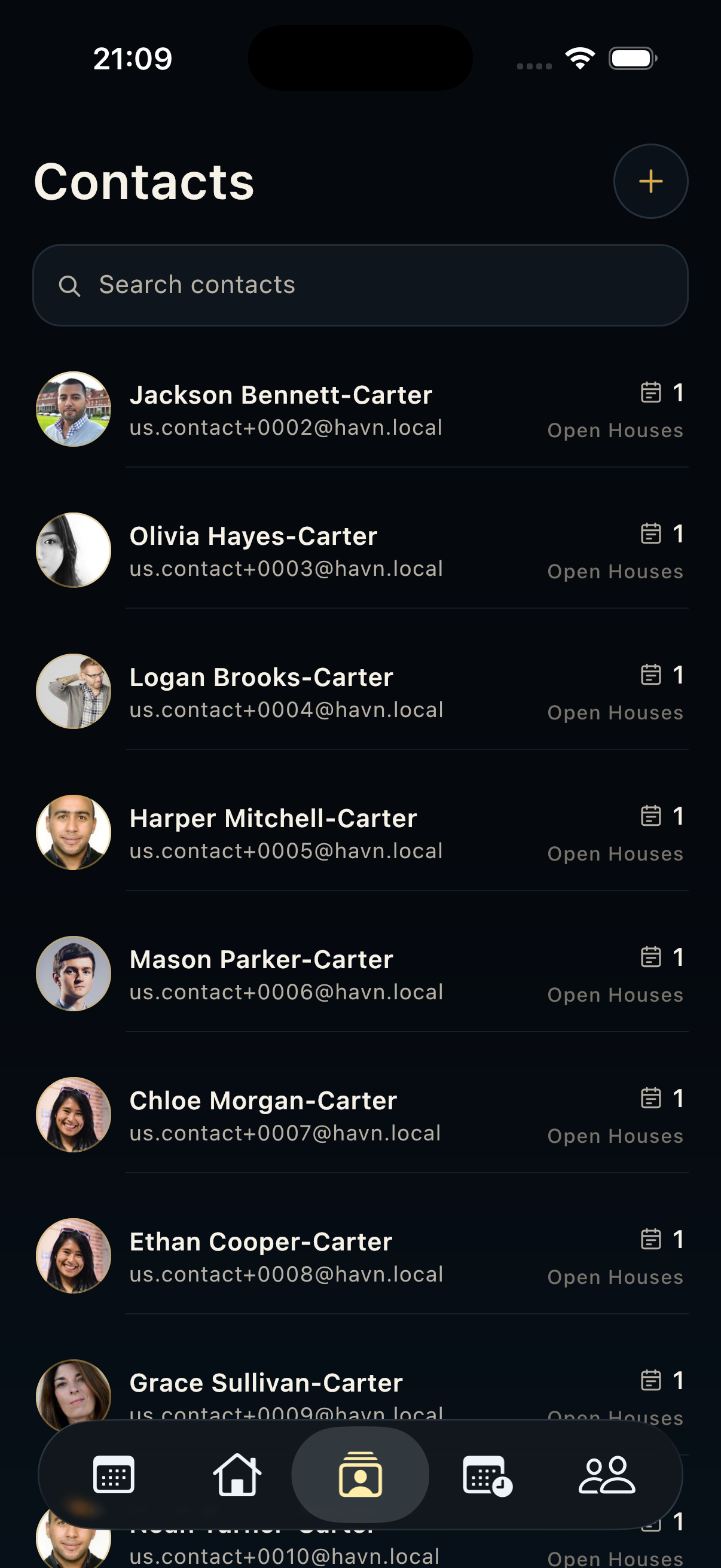 Contacts Use Contacts as the shared visitor and client directory for profiles, QR passes, communication, comments, related openings, and linked work.
 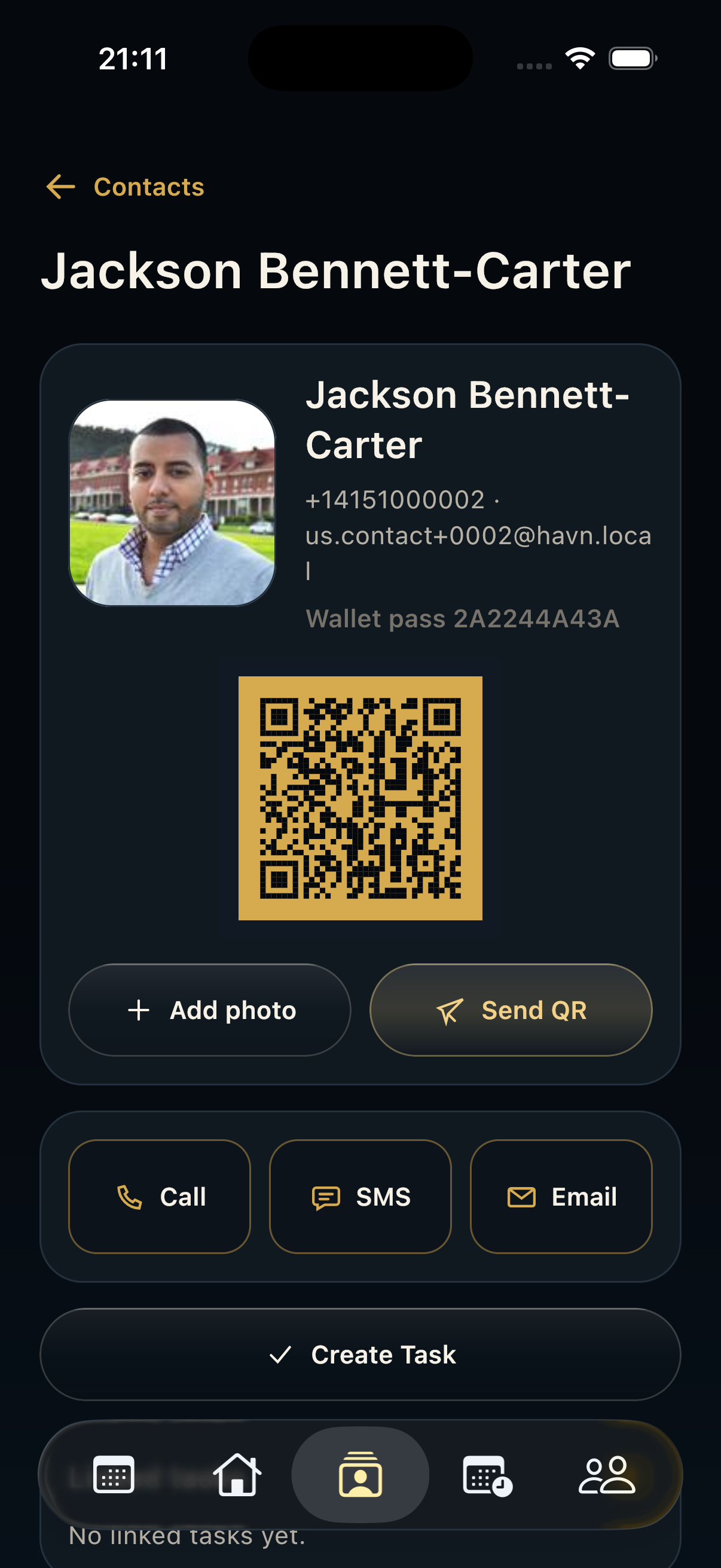 Contact detail Use Contact detail to inspect a visitor profile, QR pass, communication options, private comments, open-house history, and task links.
 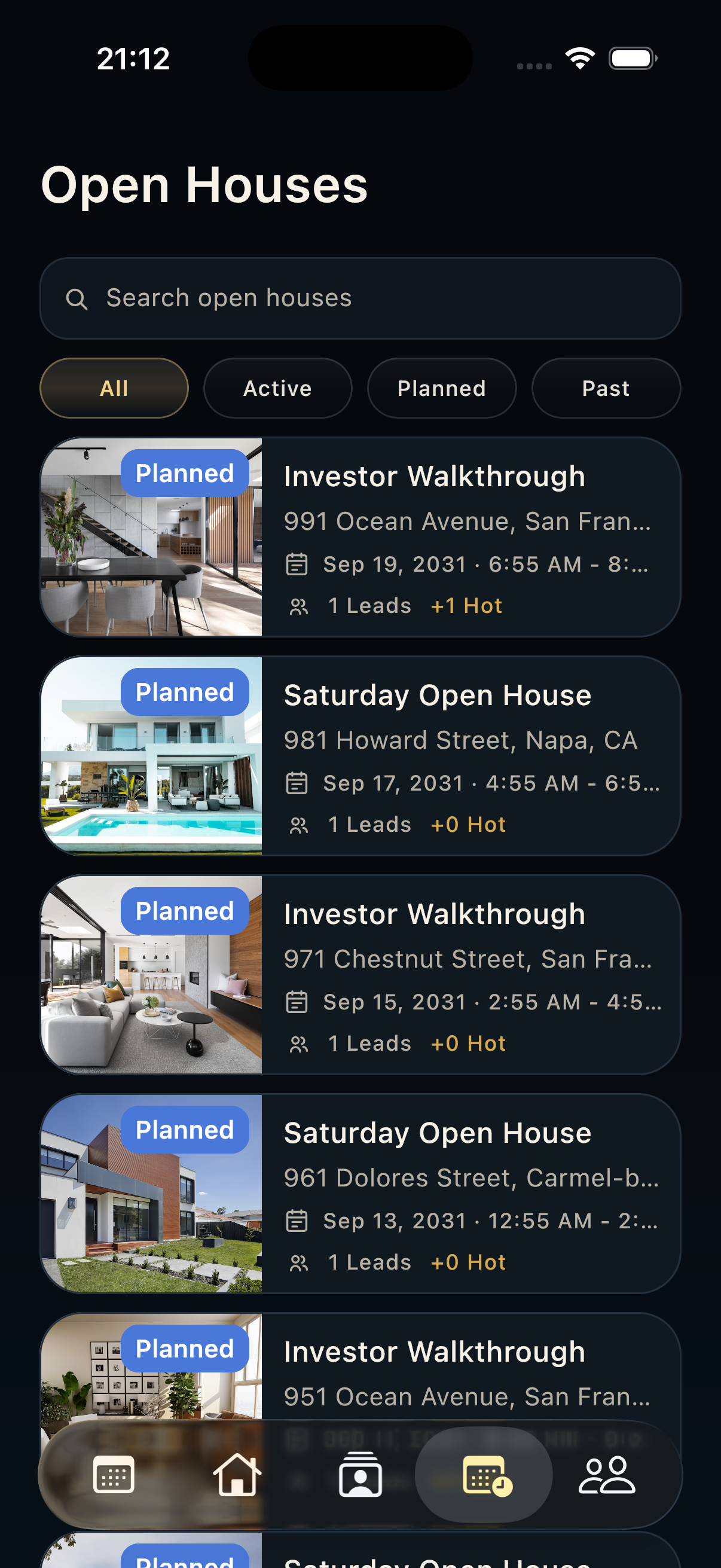 Open Houses Use Open Houses to schedule, find, run, monitor, and close showing events connected to the correct property.
 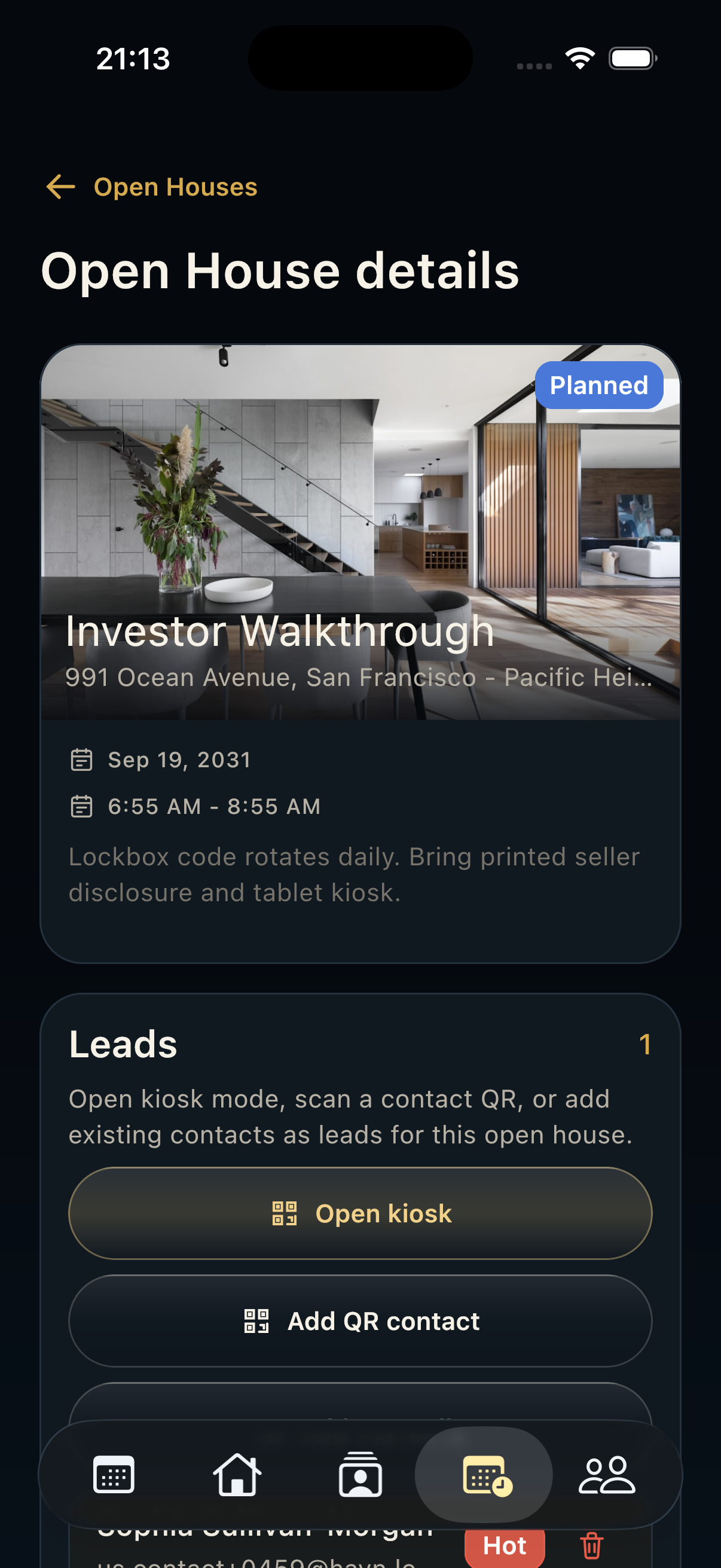 Open house detail Use Open house detail to manage one showing: status, schedule, notes, kiosk, QR check-in, manual visitor entry, leads, and linked tasks.
 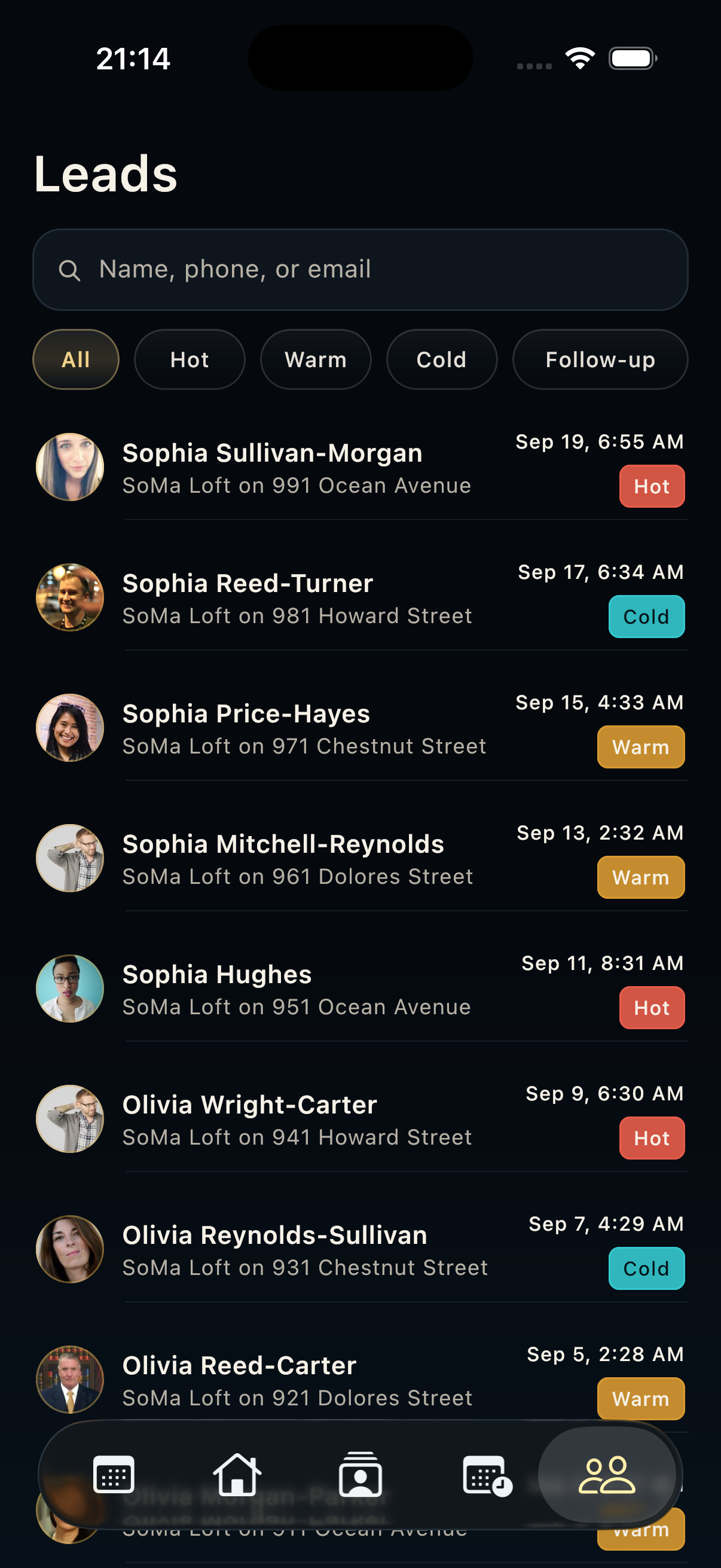 Leads Use Leads to qualify visitors, filter by intent, review property/open-house context, and decide the next follow-up action.
 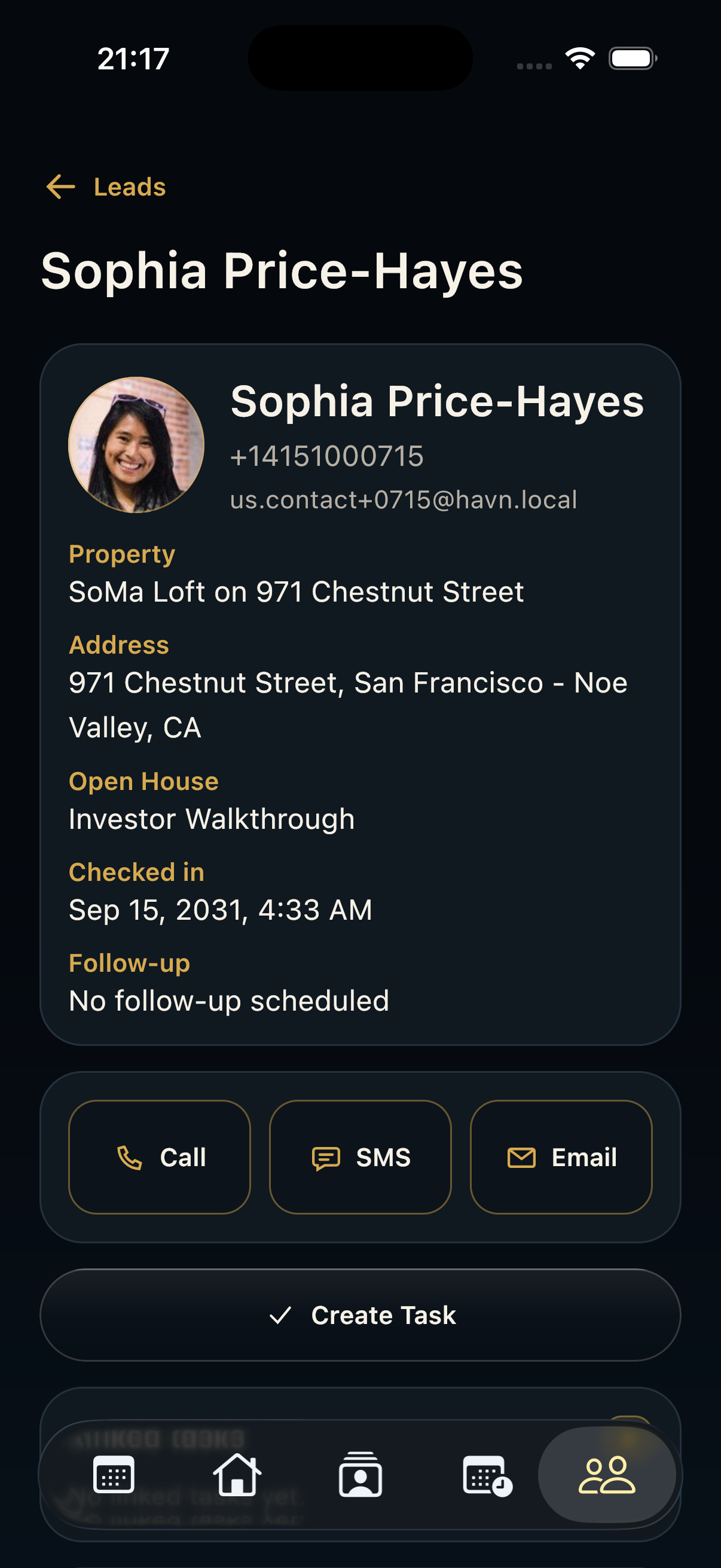 Lead detail Use Lead detail to qualify one visitor, contact them, adjust temperature, add private notes, review follow-up history, and create tracked work.
 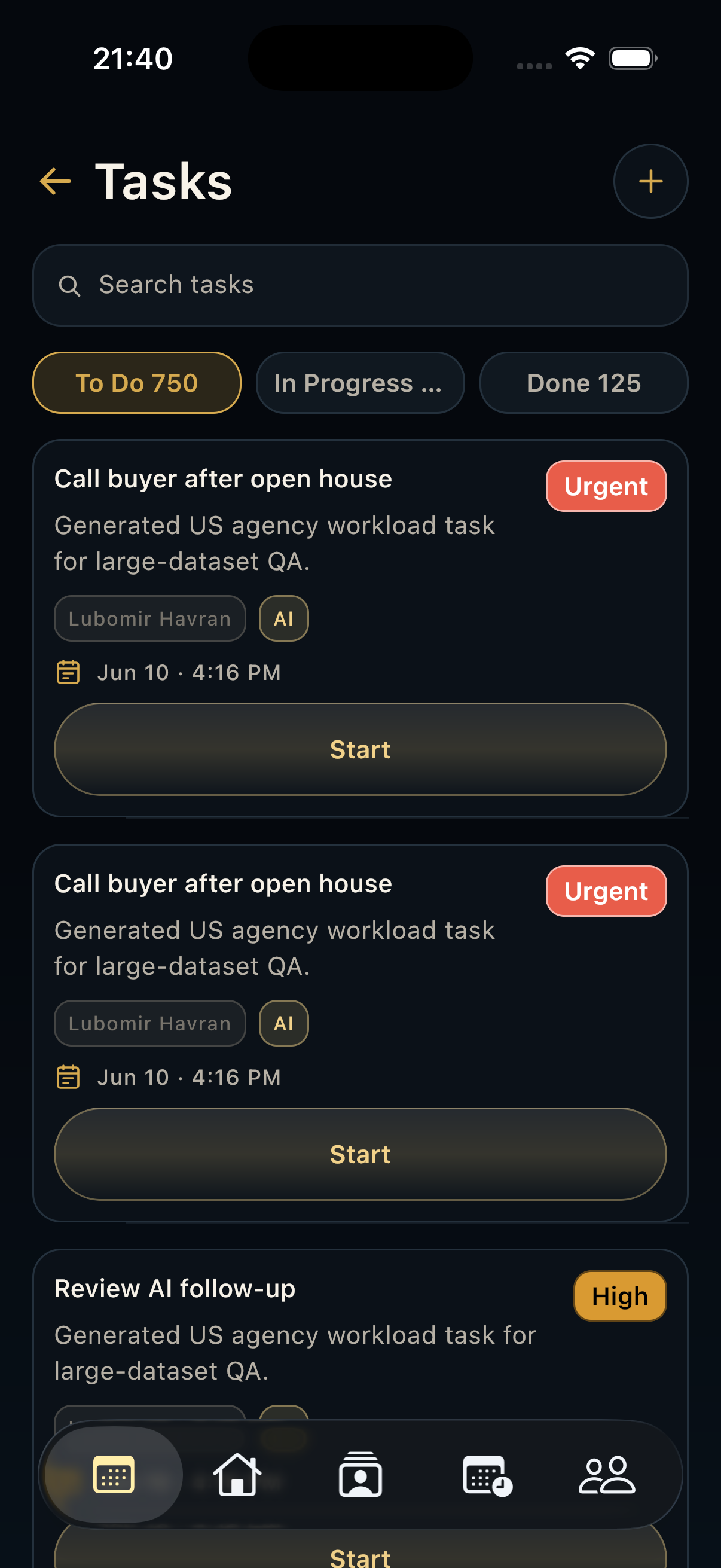 Tasks Use Tasks to manage operational work, follow-up, AI-suggested actions, due dates, priorities, assignment, and status changes.
 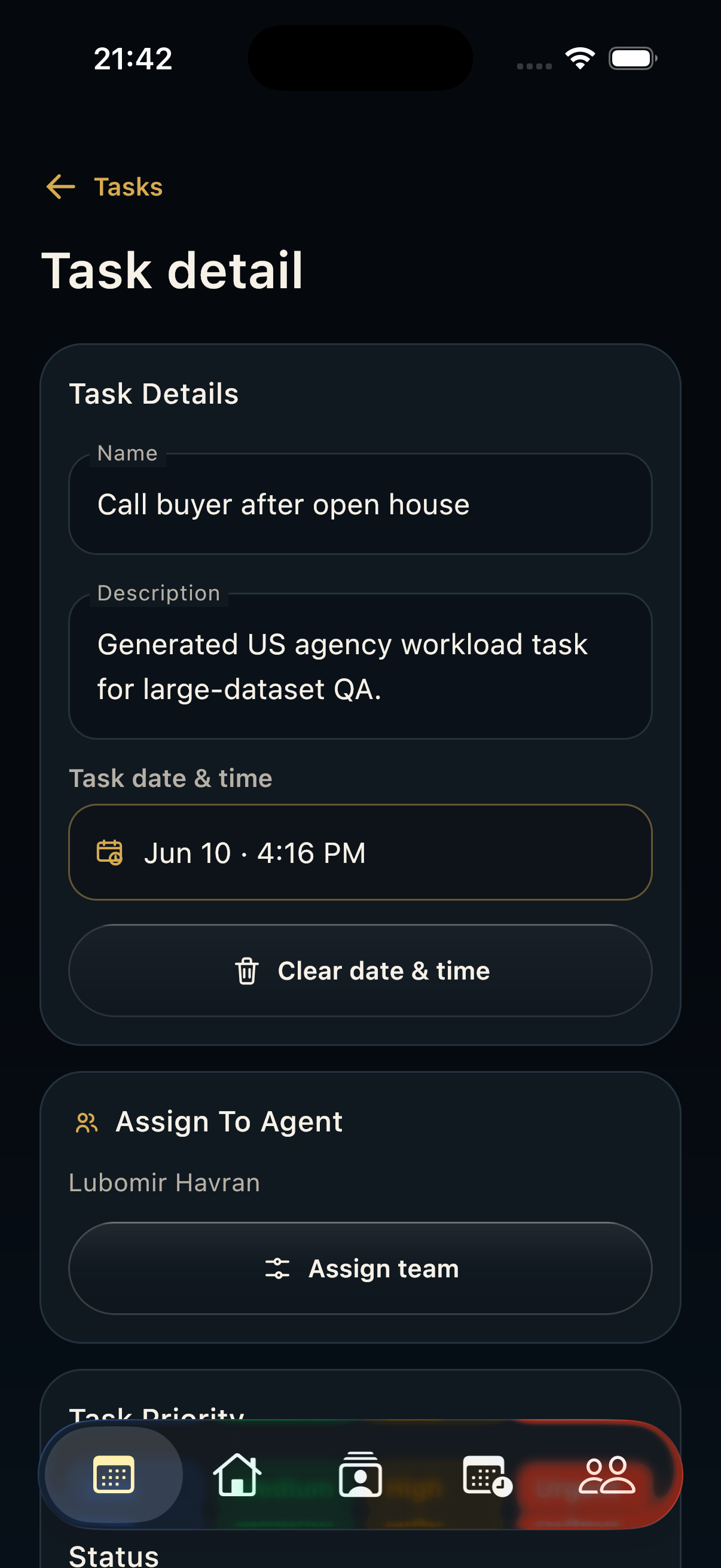 Task detail Use Task detail to understand one work item, including title, description, due date, assignee, priority, status, notes, activity timeline, and connected context.
 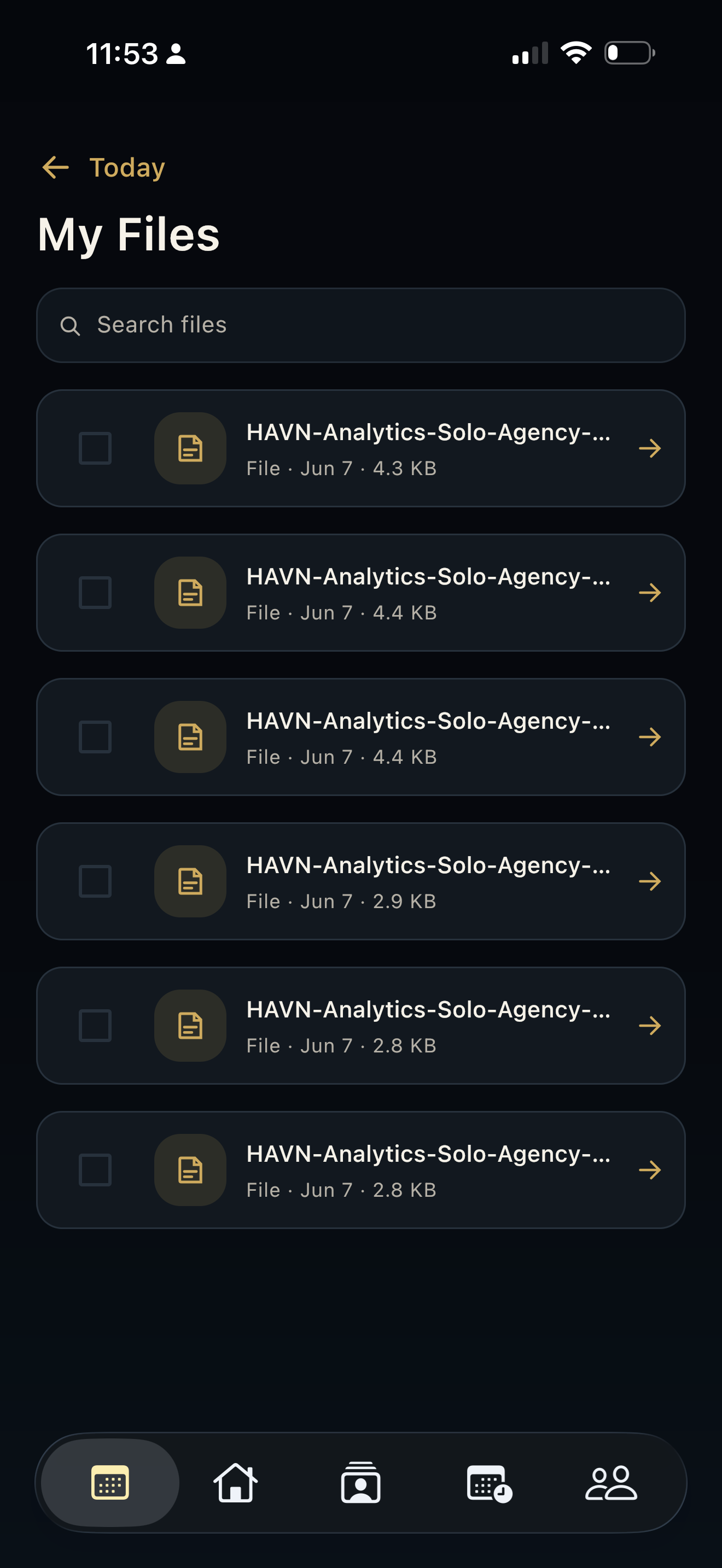 Files and Docs Use Files and Docs to find generated PDFs, report exports, attachments, and supporting documents tied to workspace work.
 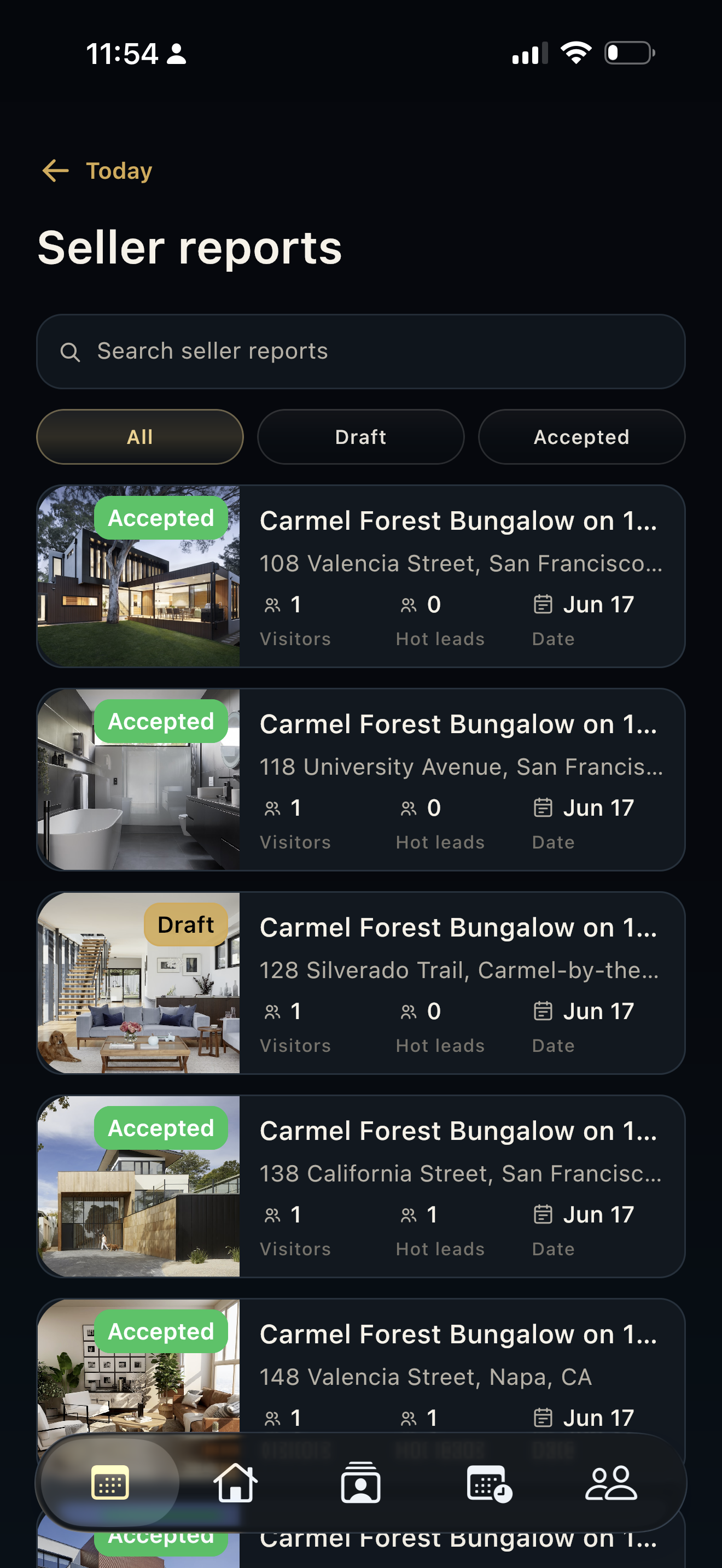 Seller reports Use Seller reports to search, filter, review, generate, approve, export, and share seller-facing updates built from property, open-house, lead, task, and follow-up data.
 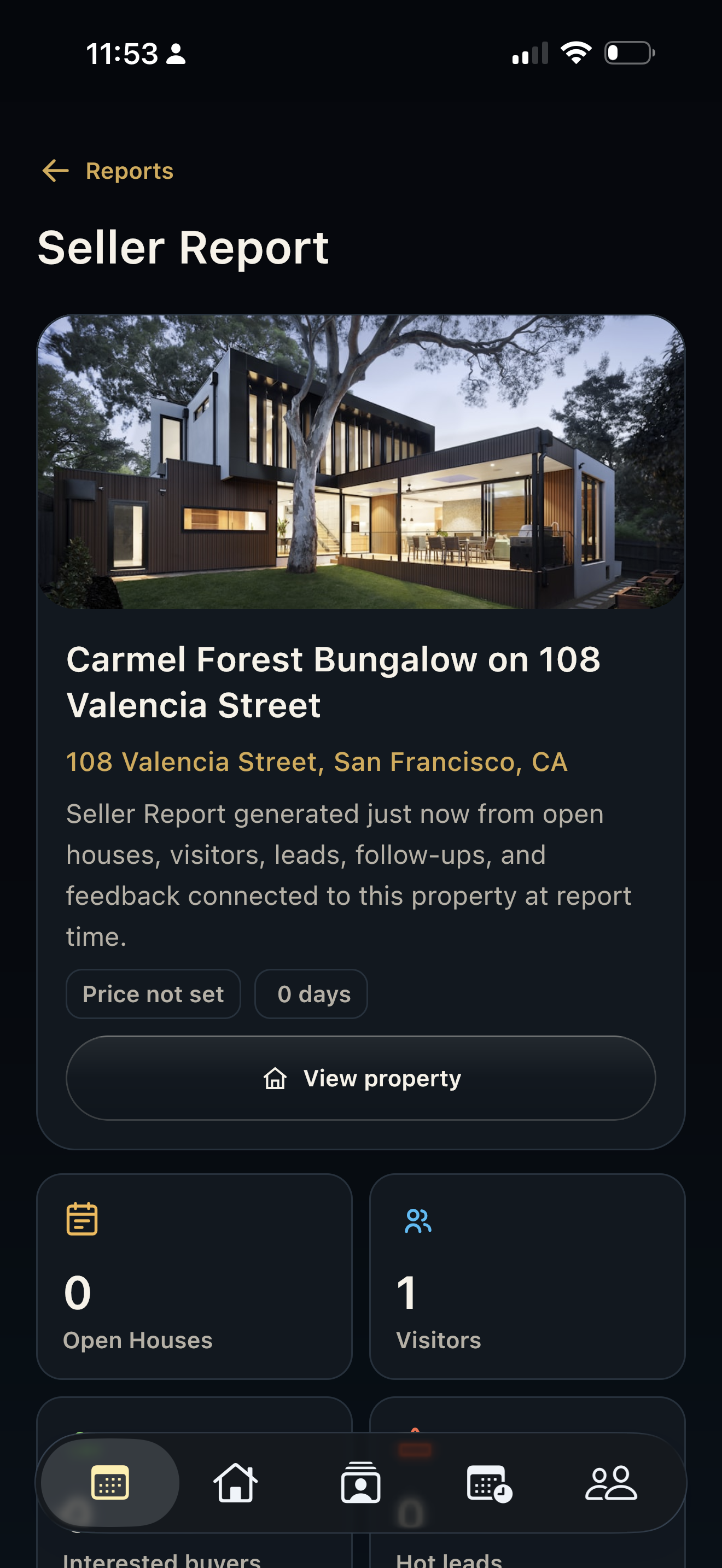 Seller report detail Use Seller report detail to inspect the full seller update: property summary, report status, activity metrics, funnel, timeline, open-house breakdown, AI insights, recommendations, PDF, email, and SMS actions.
 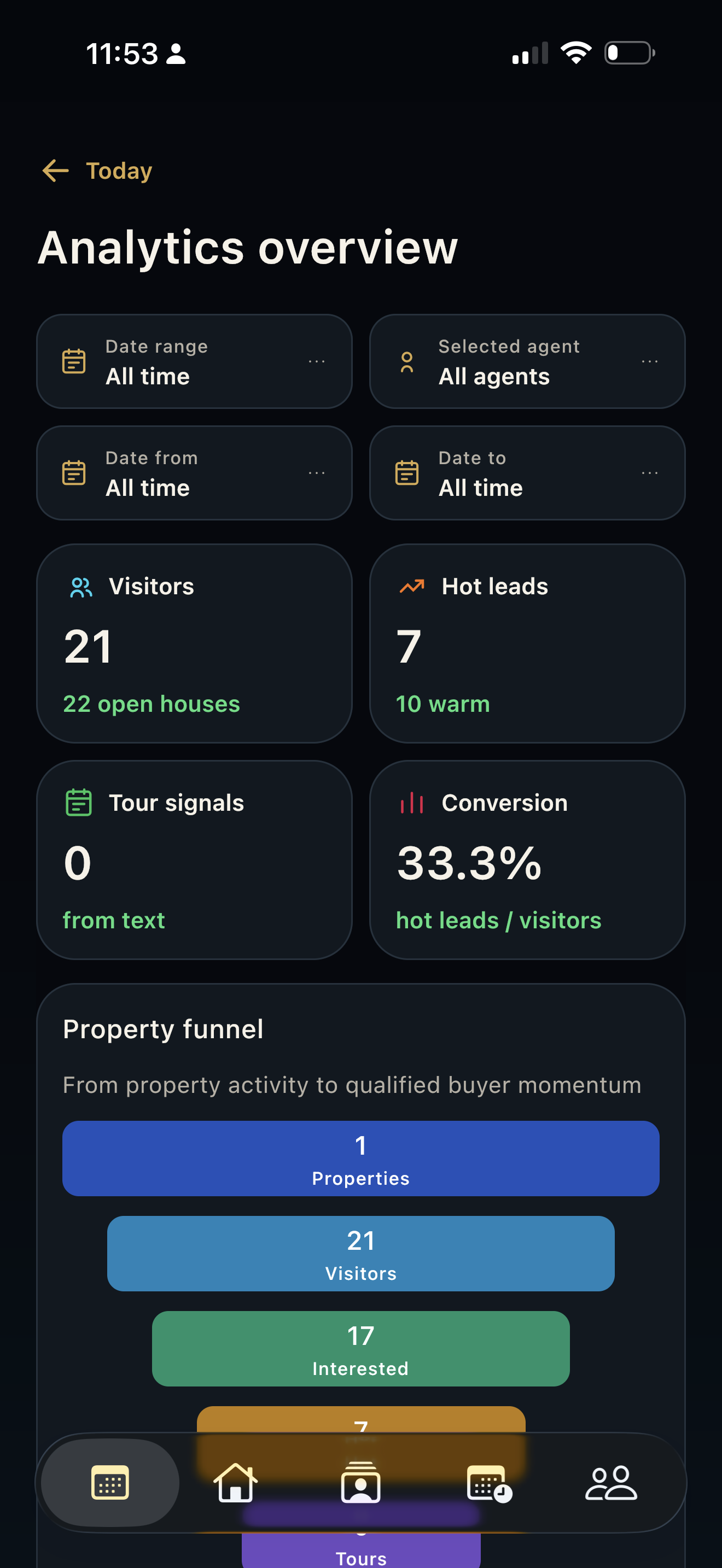 Analytics Use Analytics to review performance by date range and agent, including visitors, hot leads, tour signals, conversion, funnel, property momentum, and AI insight context.
 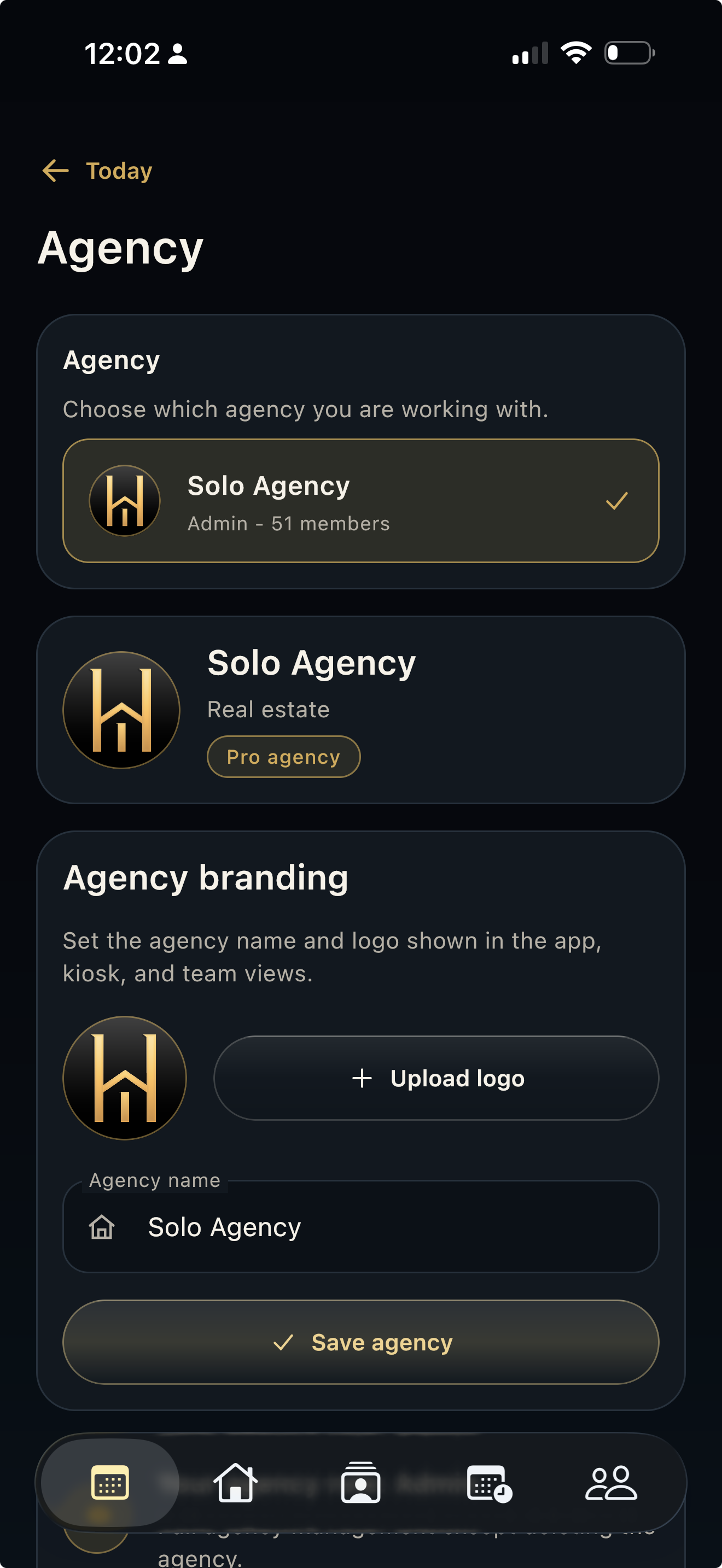 Agency Use Agency to select the active workspace, manage agency branding, invite agents, update roles, remove access, and review team context.
 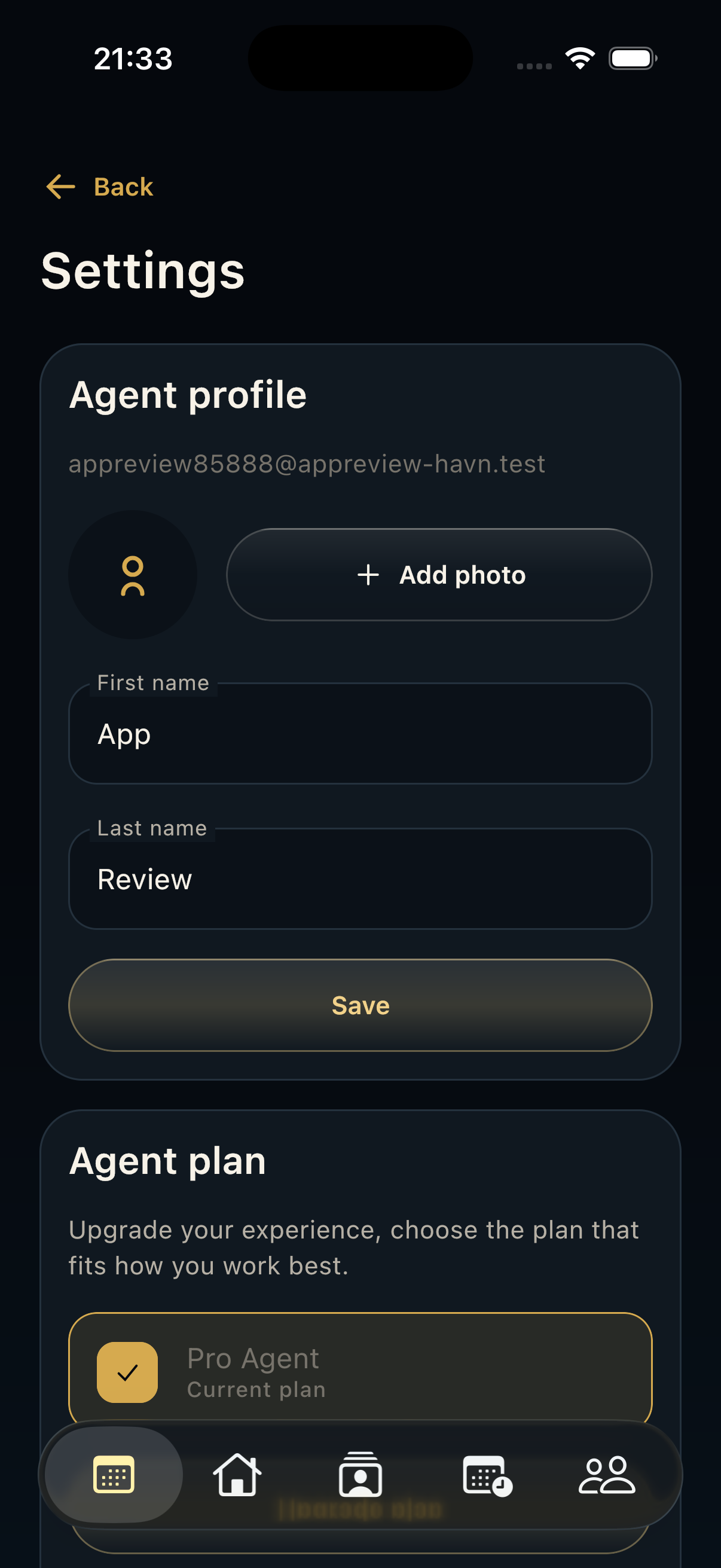 Settings Use Settings for the signed-in agent profile, photo, name, plan, purchases, notifications, quiet hours, language, preferences, legal links, support, sign-out, and account actions.
 For iPad/tablet kiosk mode, web setup, reporting, and workspace review.
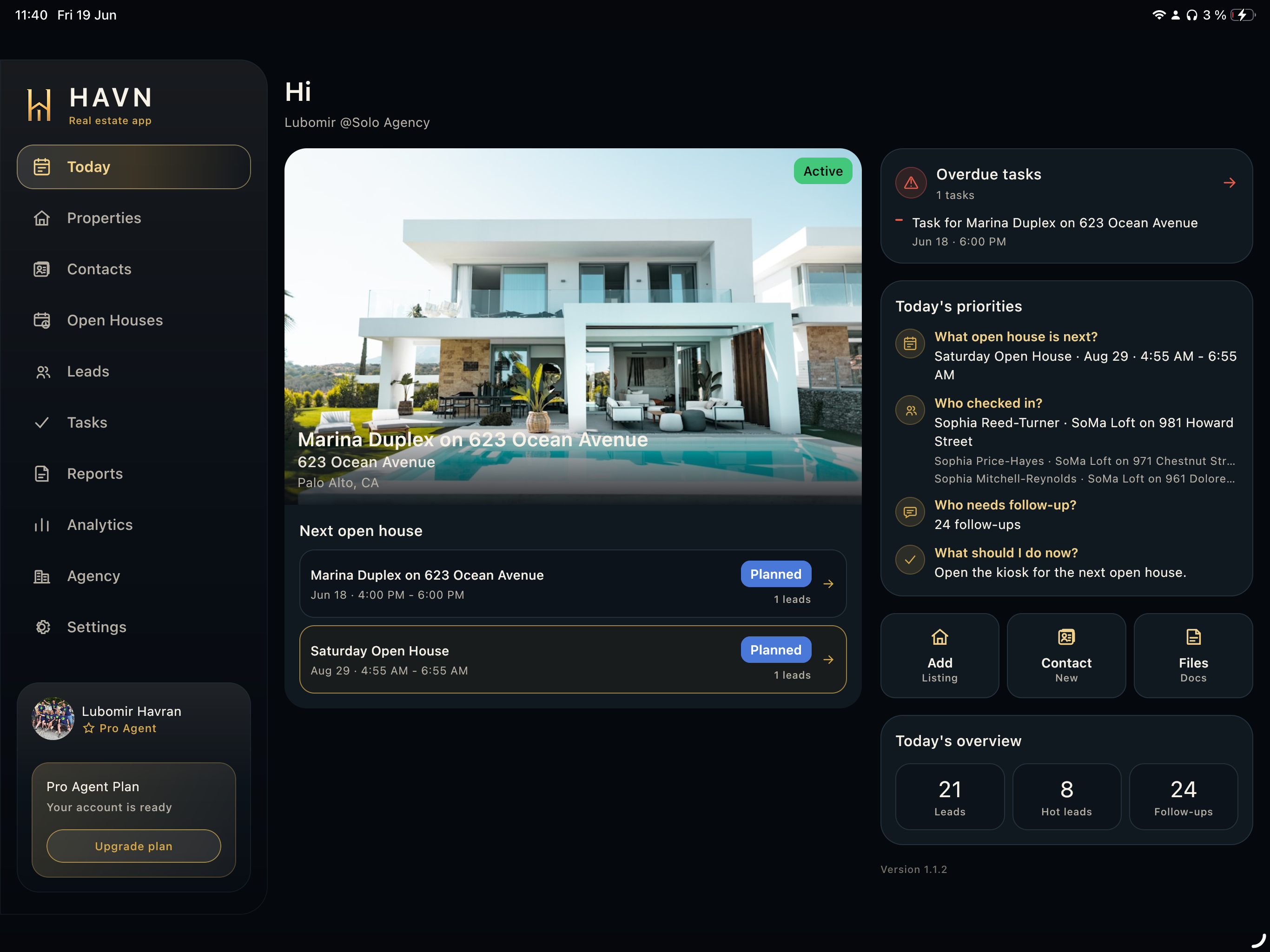 Tablet/Web manual A detailed tablet and web manual for the shared HAVN workspace, with the larger sidebar layout for review, kiosk, reporting, team operations, and setup. Today Use Today as the command center for the active property, next open house, overdue work, priorities, quick actions, workspace shortcuts, and overview metrics.
 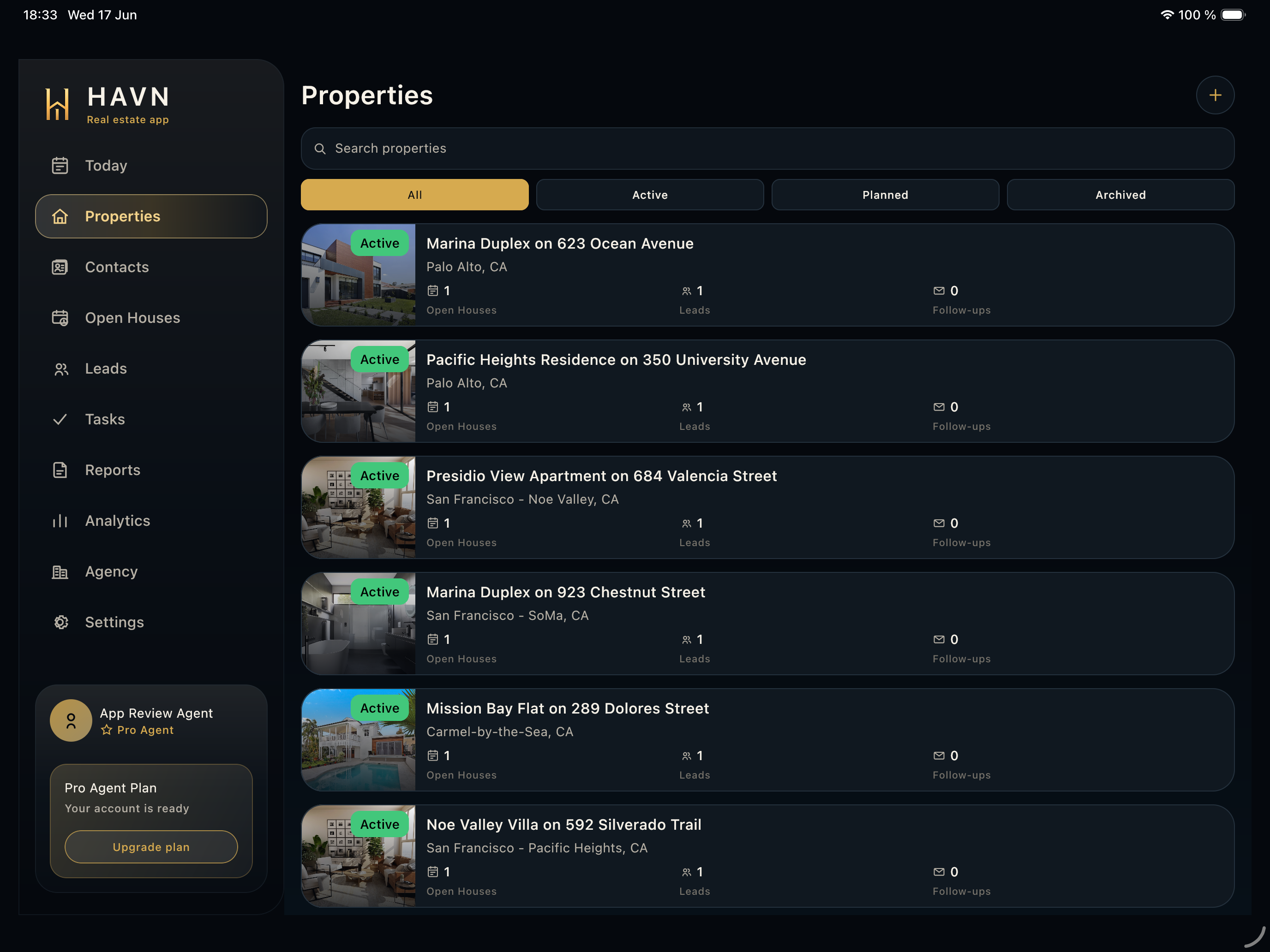 Properties Use Properties to search listings, filter by status, create or edit properties, and open the detail record that feeds openings, leads, tasks, files, reports, and analytics.
 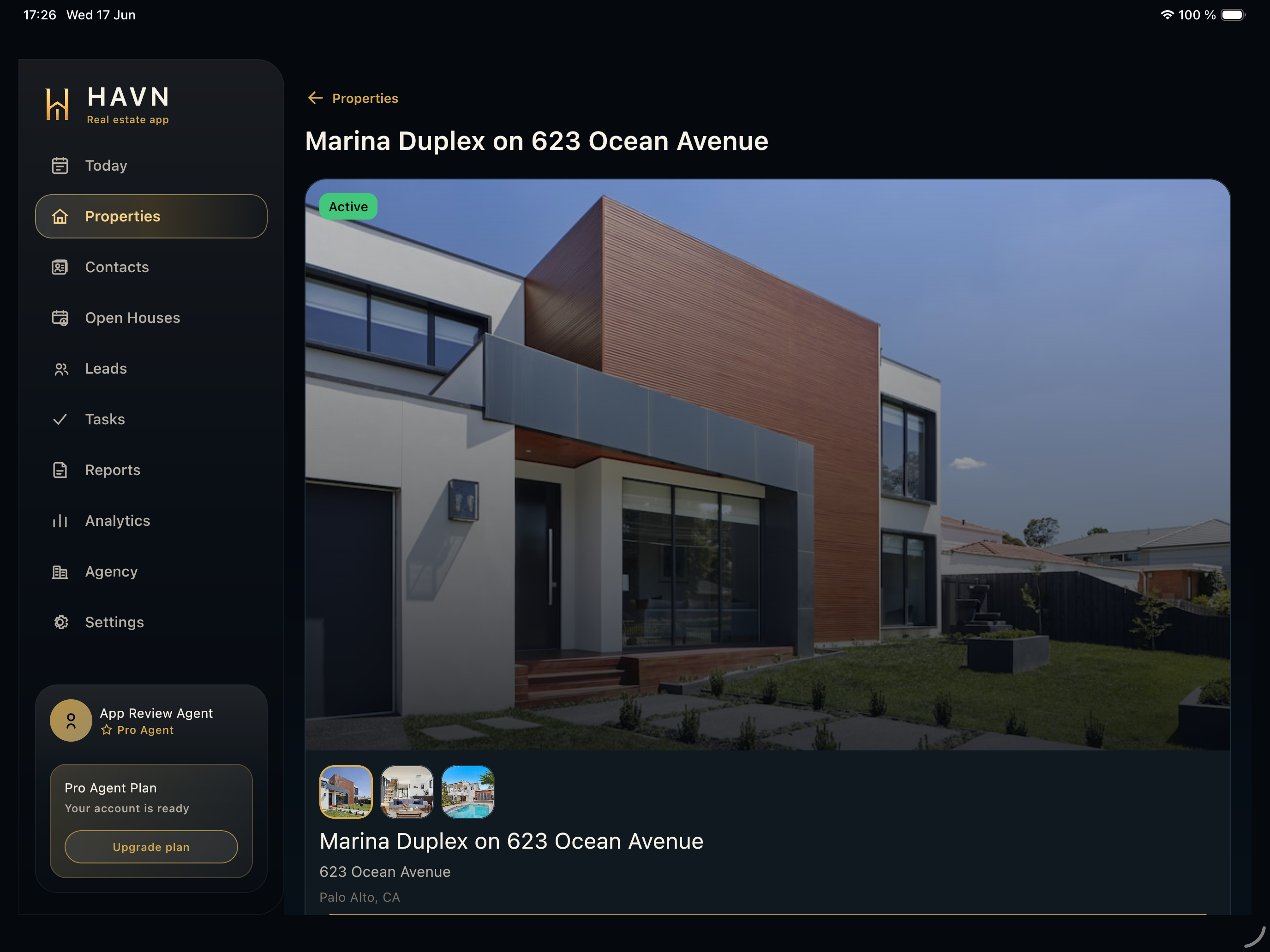 Property detail Use Property detail to verify listing identity, photos, location, owner context, open houses, leads, files, linked tasks, and seller-report readiness.
 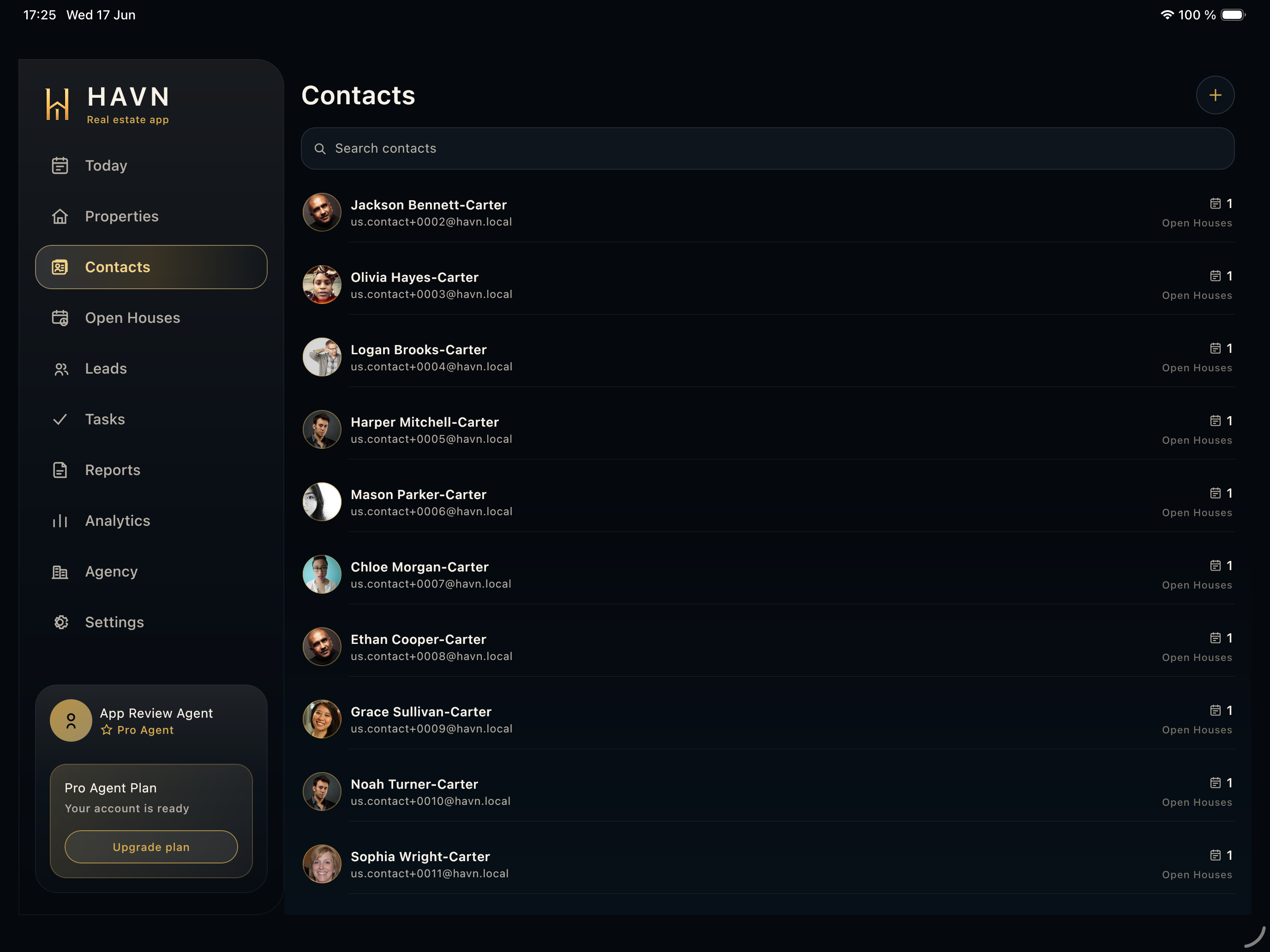 Contacts Use Contacts as the shared visitor and client directory for profiles, QR passes, communication, comments, related openings, and linked work.
 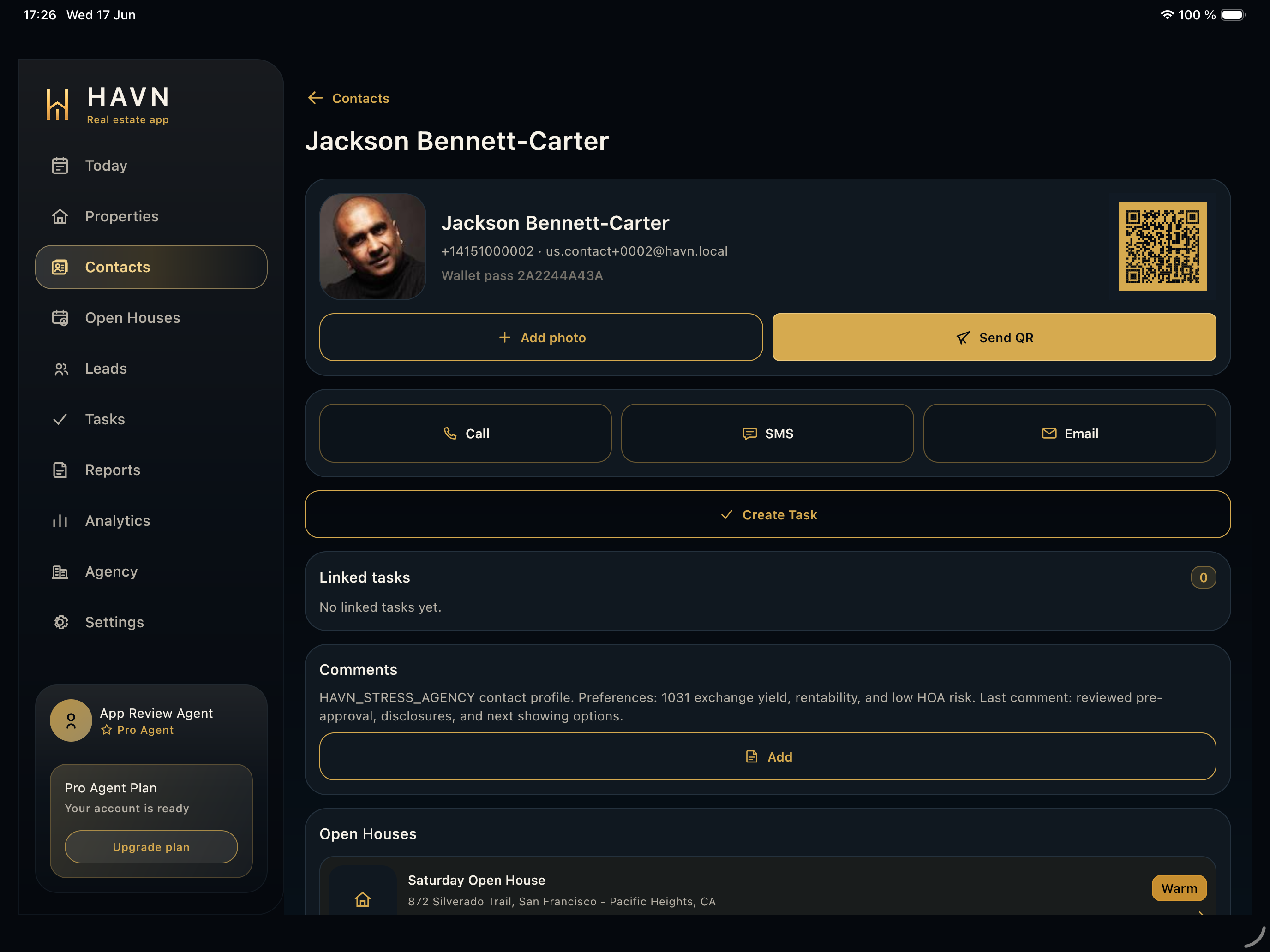 Contact detail Use Contact detail to inspect a visitor profile, QR pass, communication options, private comments, open-house history, and task links.
 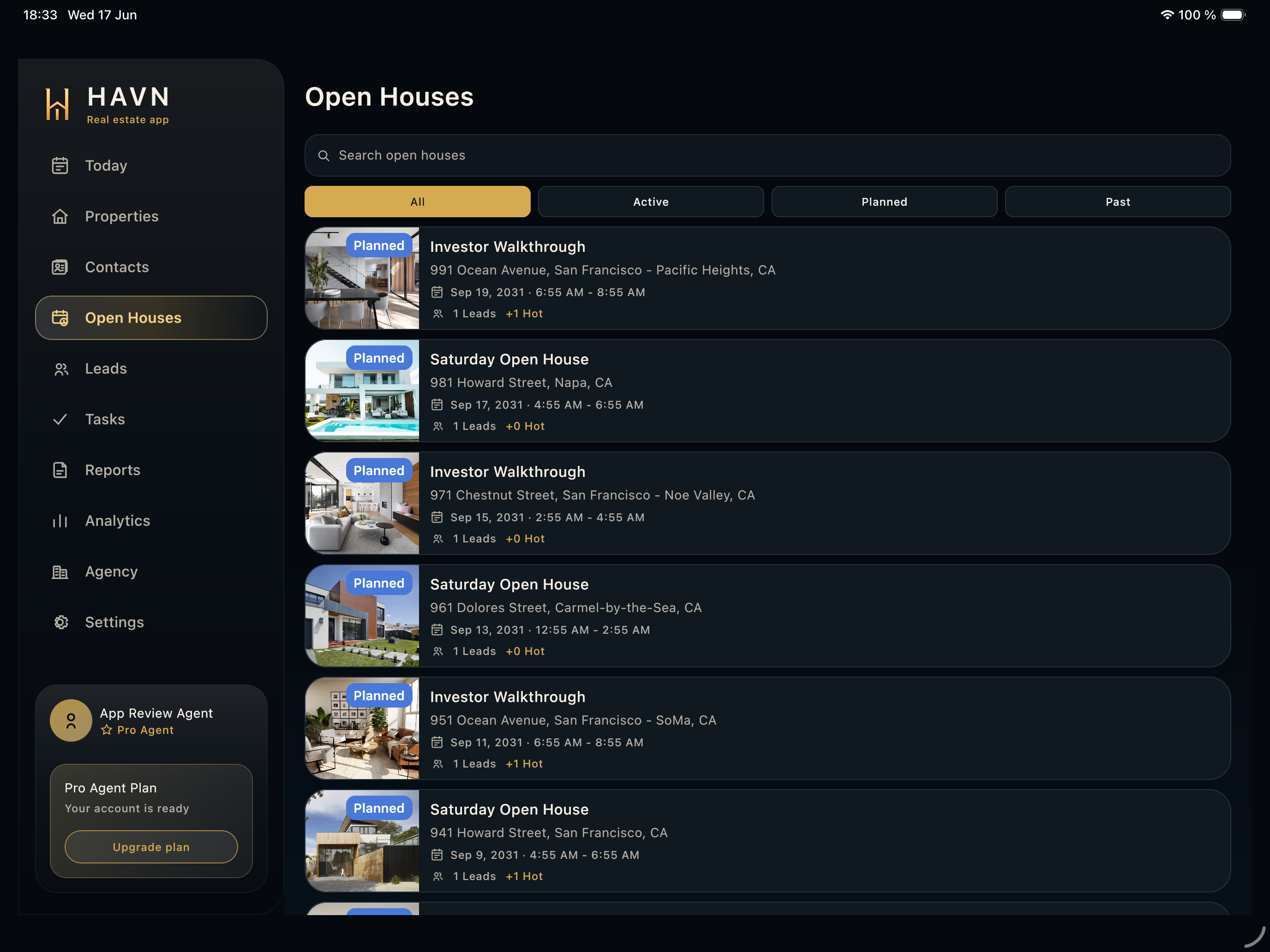 Open Houses Use Open Houses to schedule, find, run, monitor, and close showing events connected to the correct property.
 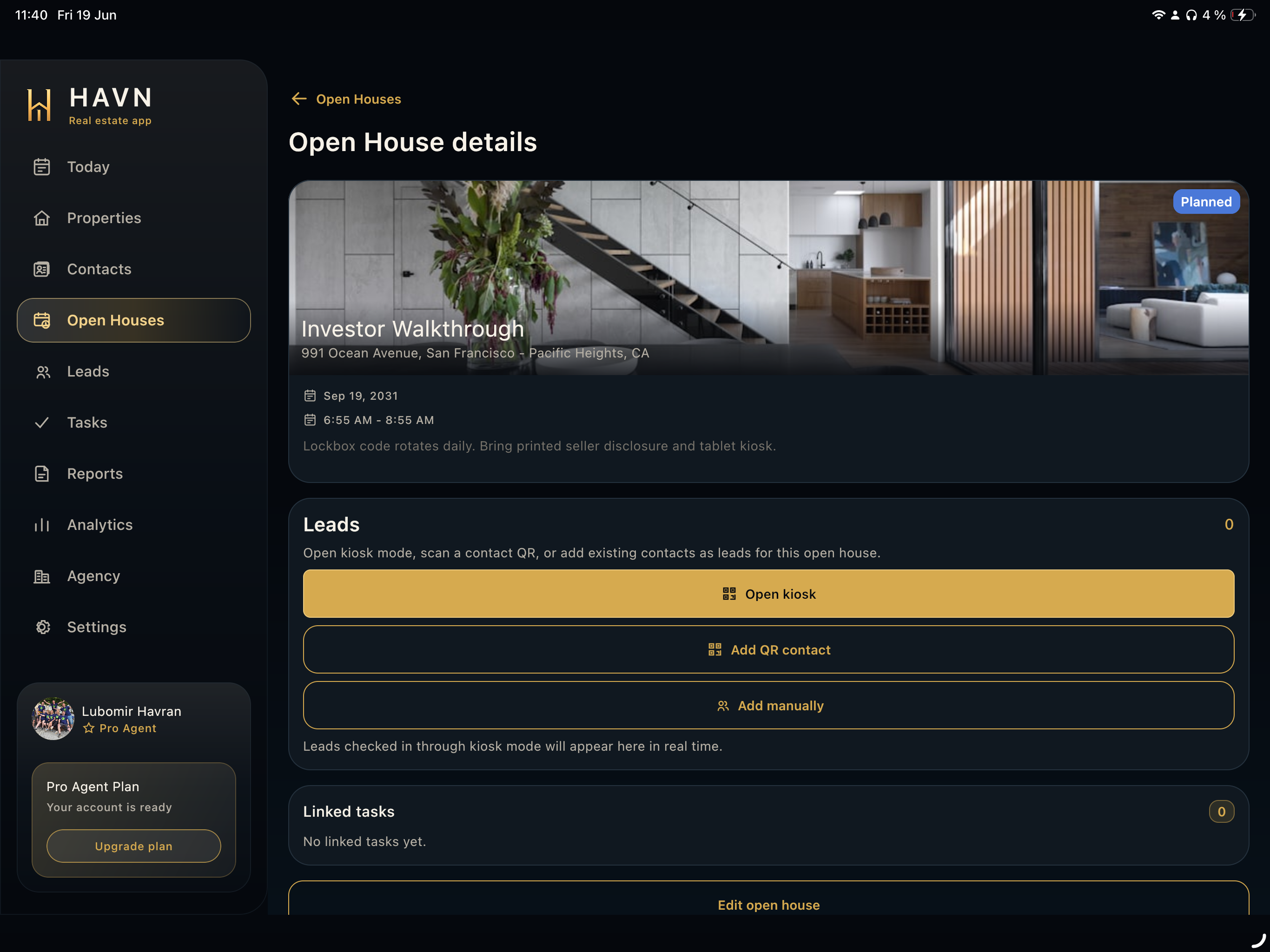 Open house detail Use Open house detail to manage one showing: status, schedule, notes, kiosk, QR check-in, manual visitor entry, leads, and linked tasks.
 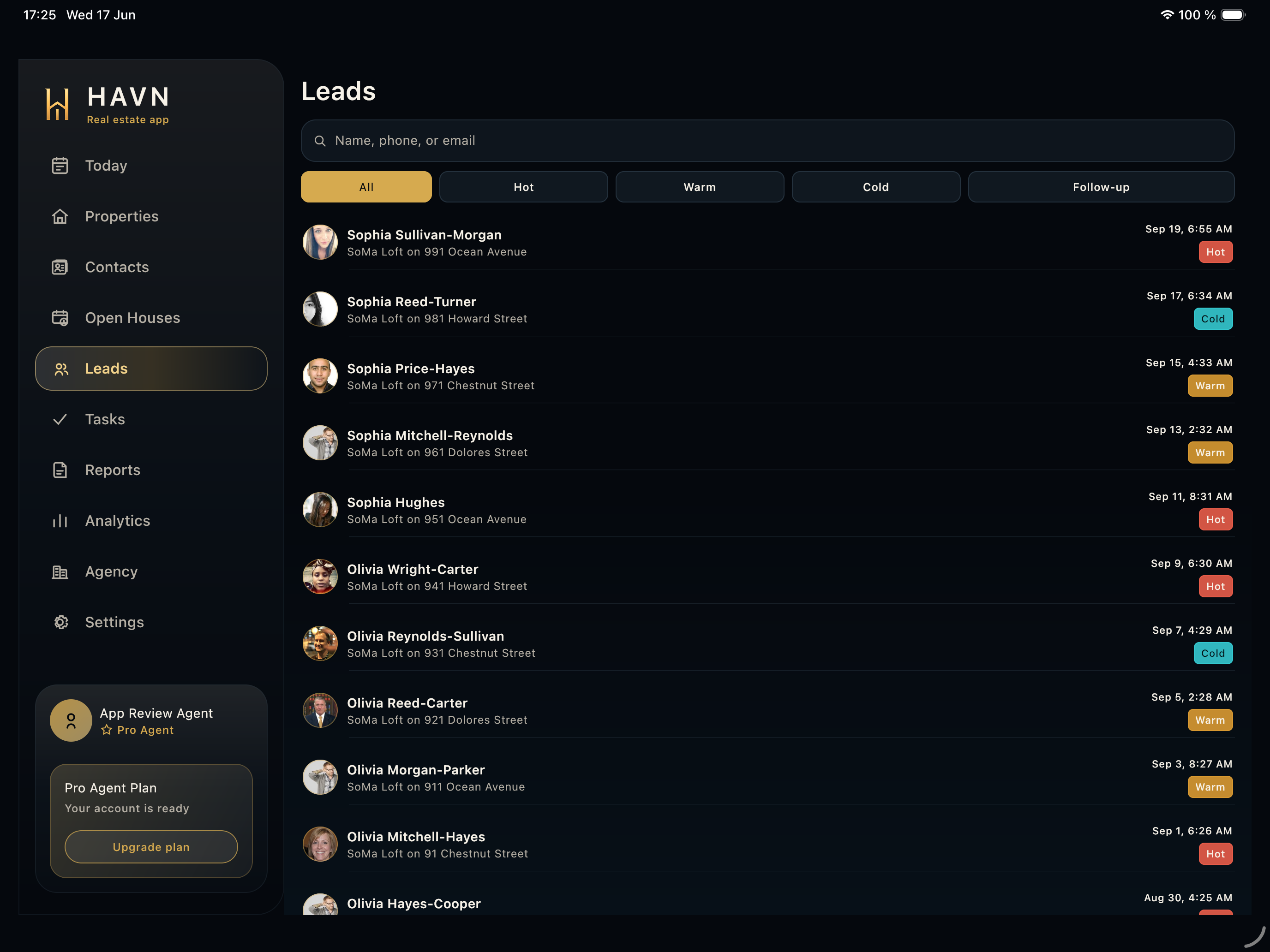 Leads Use Leads to qualify visitors, filter by intent, review property/open-house context, and decide the next follow-up action.
 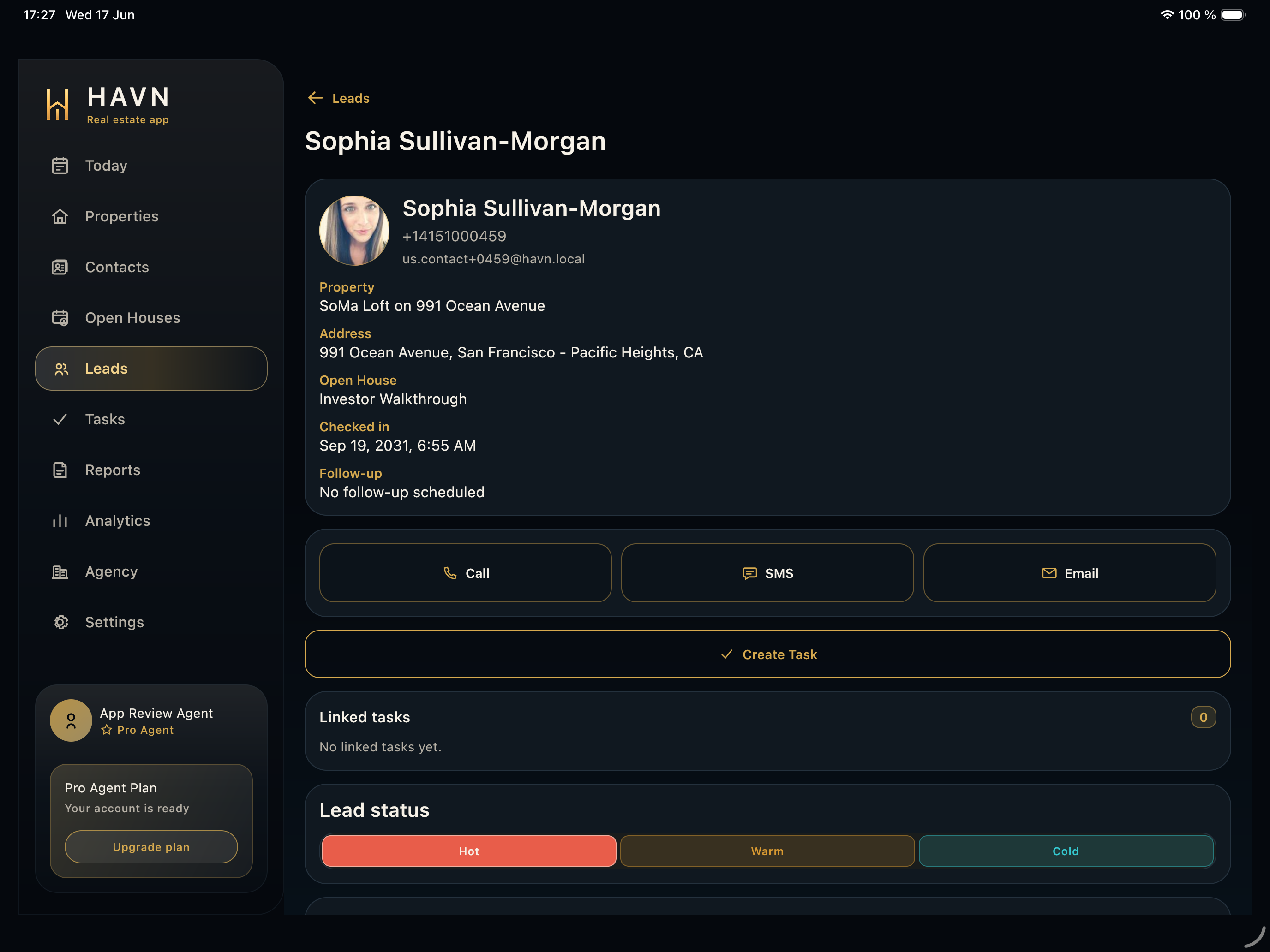 Lead detail Use Lead detail to qualify one visitor, contact them, adjust temperature, add private notes, review follow-up history, and create tracked work.
 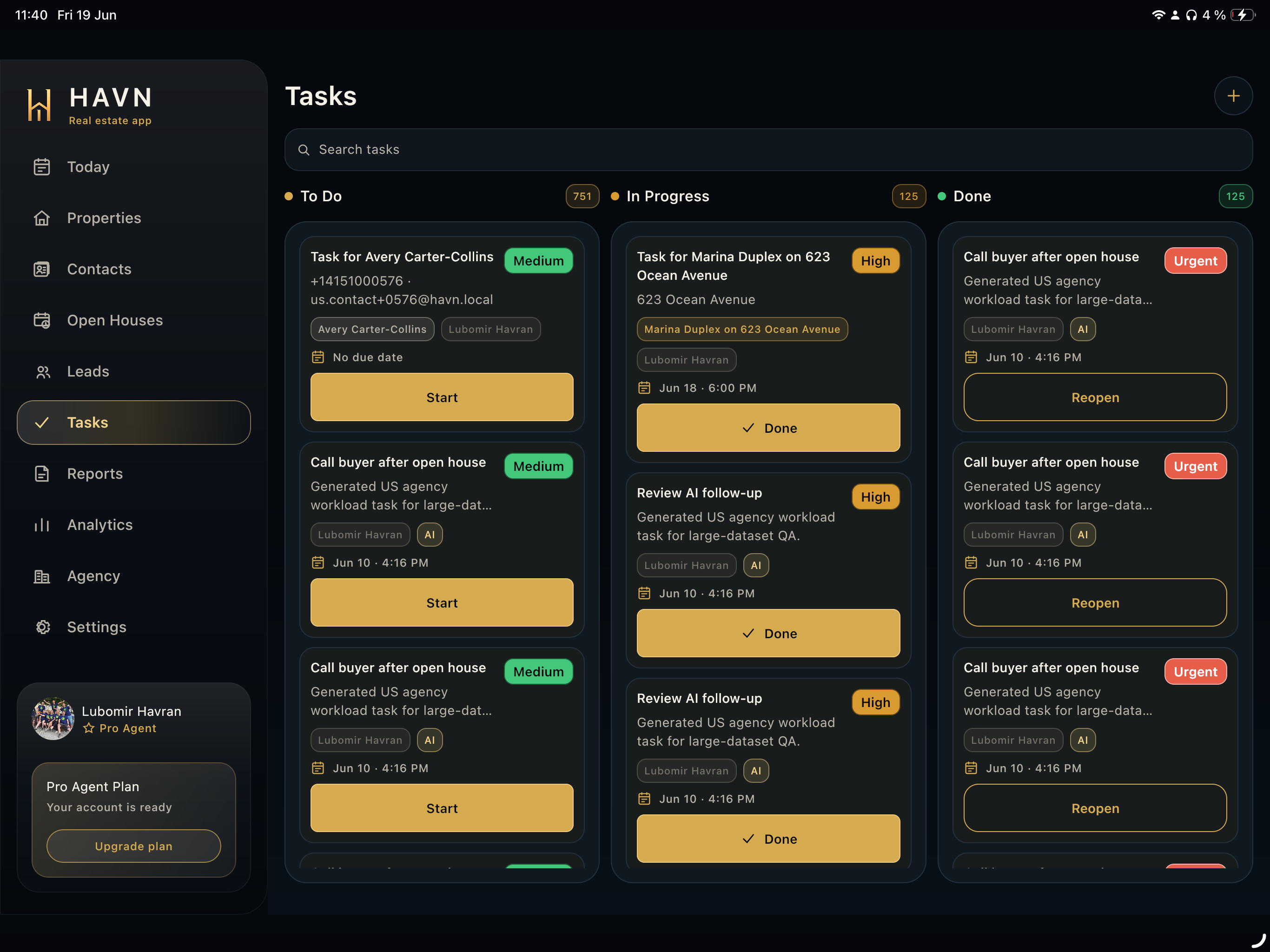 Tasks Use Tasks to manage operational work, follow-up, AI-suggested actions, due dates, priorities, assignment, and status changes.
 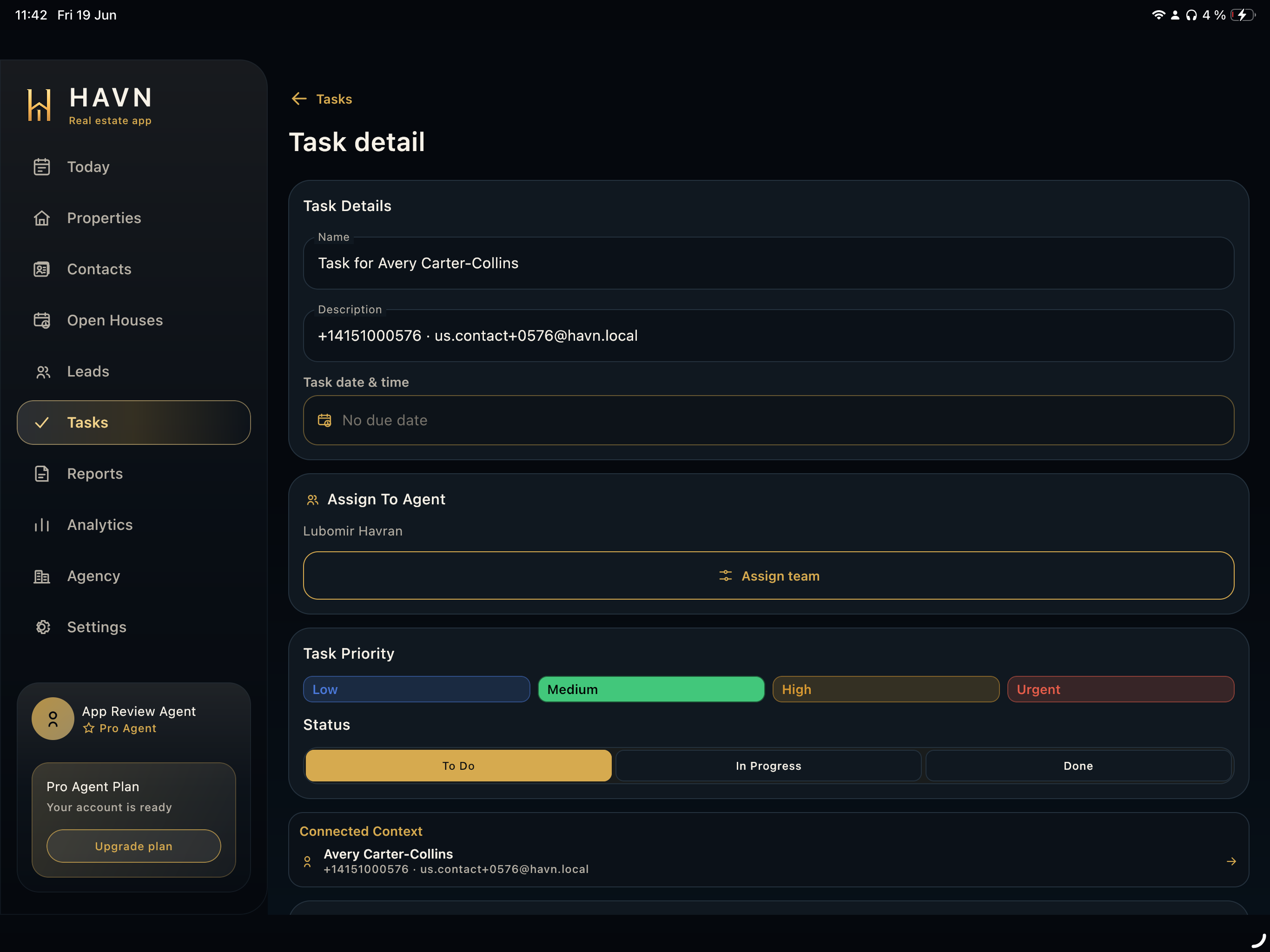 Task detail Use Task detail to understand one work item, including title, description, due date, assignee, priority, status, notes, activity timeline, and connected context.
 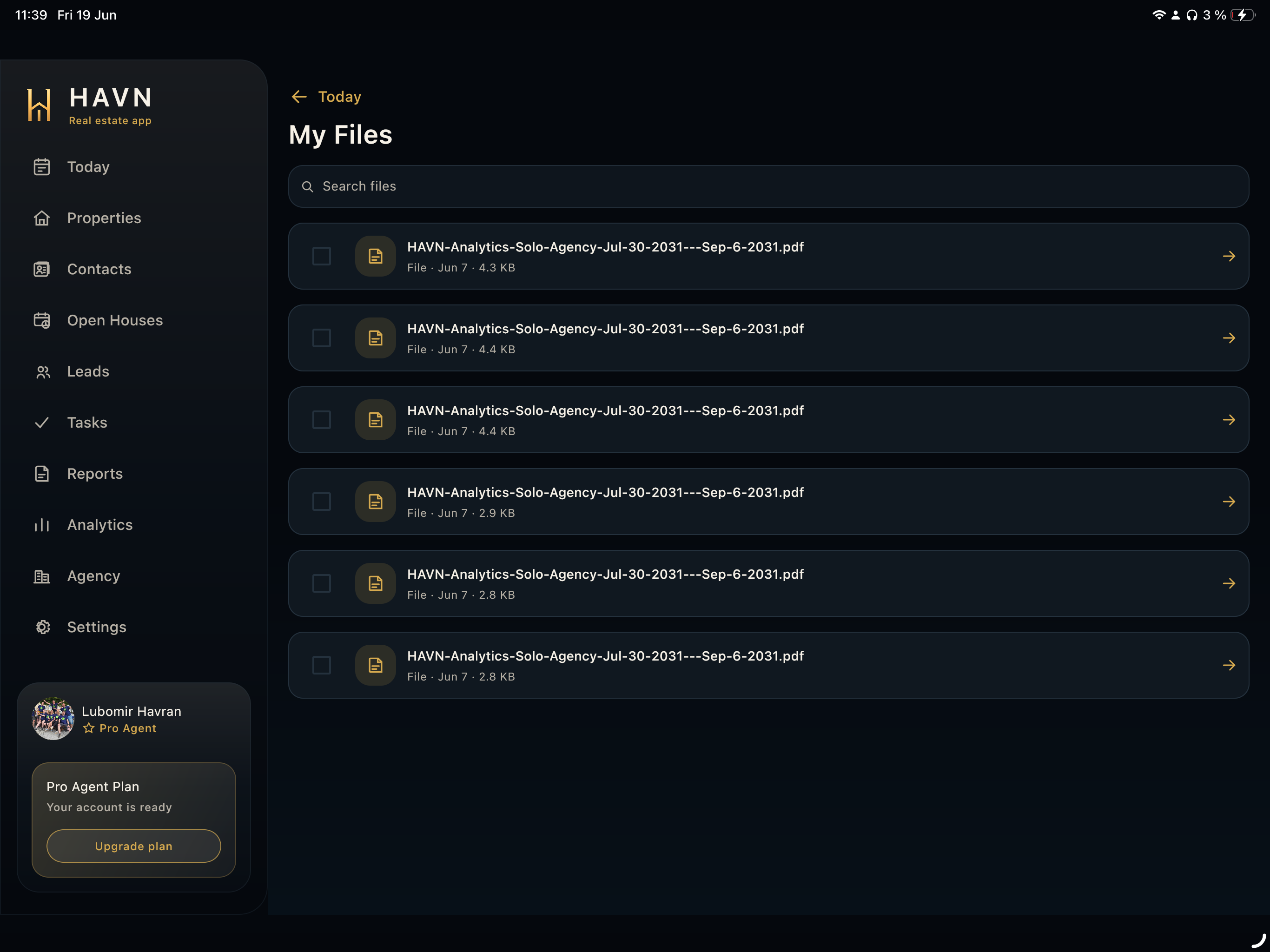 Files and Docs Use Files and Docs to find generated PDFs, report exports, attachments, and supporting documents tied to workspace work.
 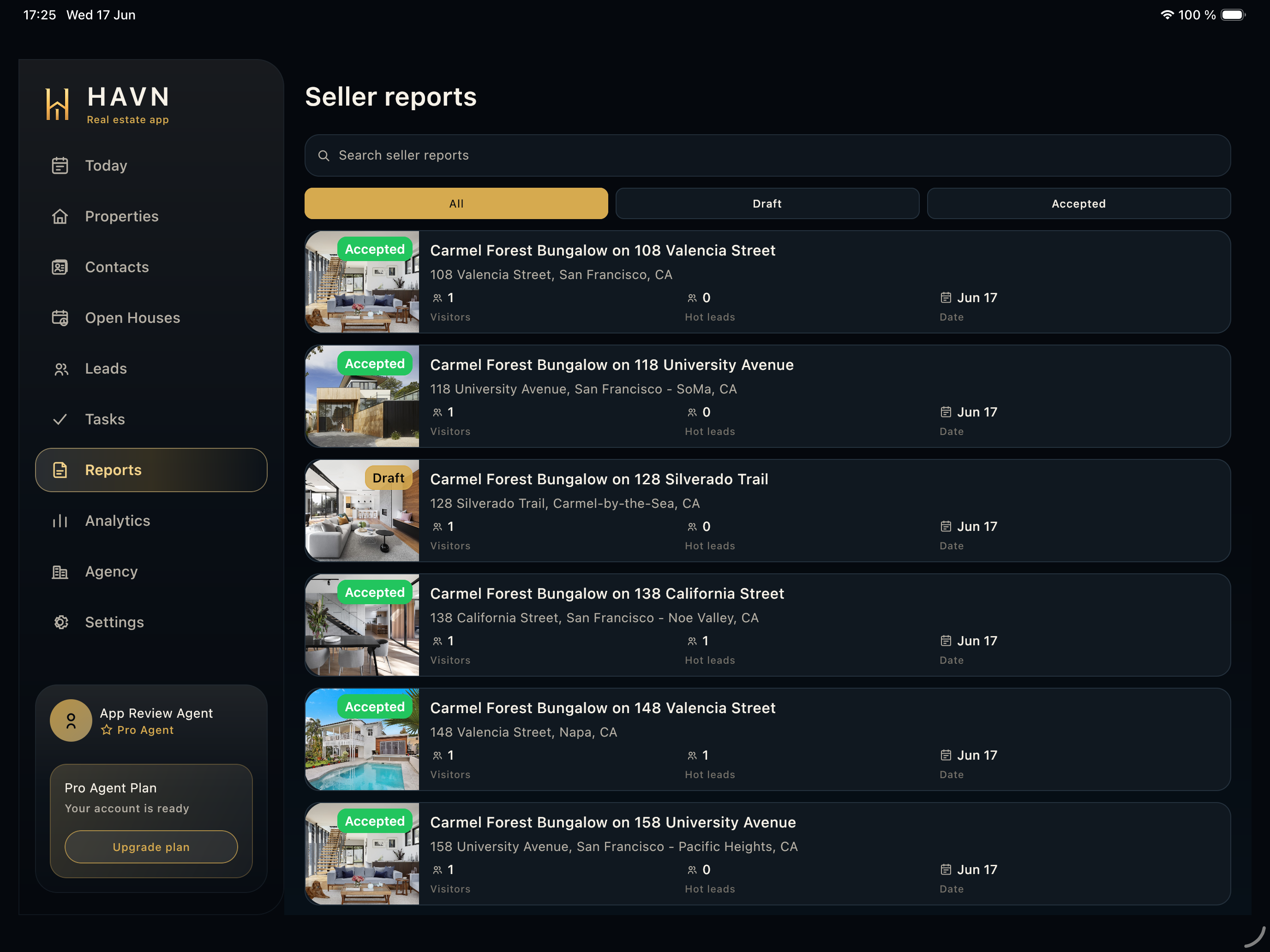 Seller reports Use Seller reports to search, filter, review, generate, approve, export, and share seller-facing updates built from property, open-house, lead, task, and follow-up data.
 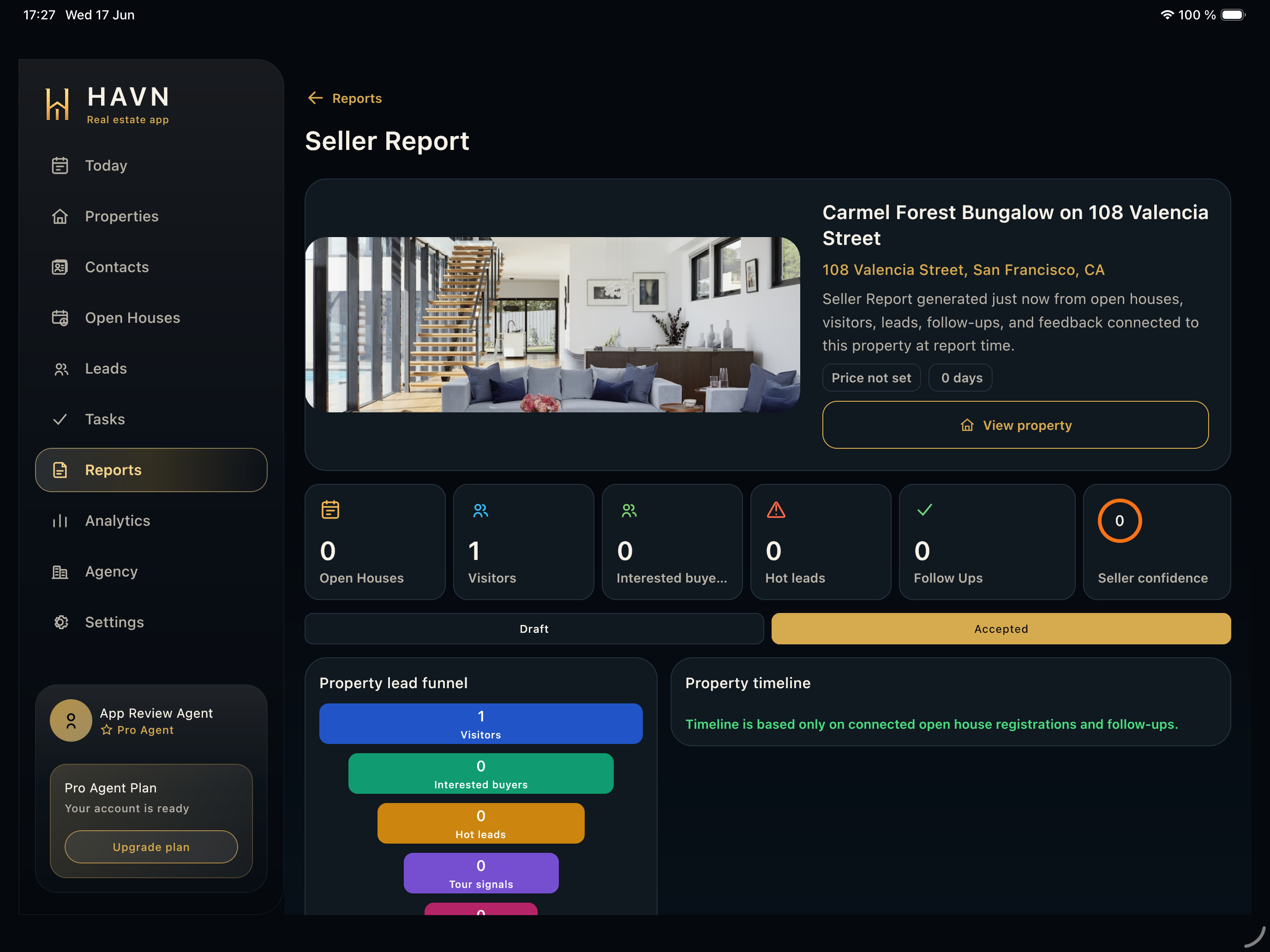 Seller report detail Use Seller report detail to inspect the full seller update: property summary, report status, activity metrics, funnel, timeline, open-house breakdown, AI insights, recommendations, PDF, email, and SMS actions.
 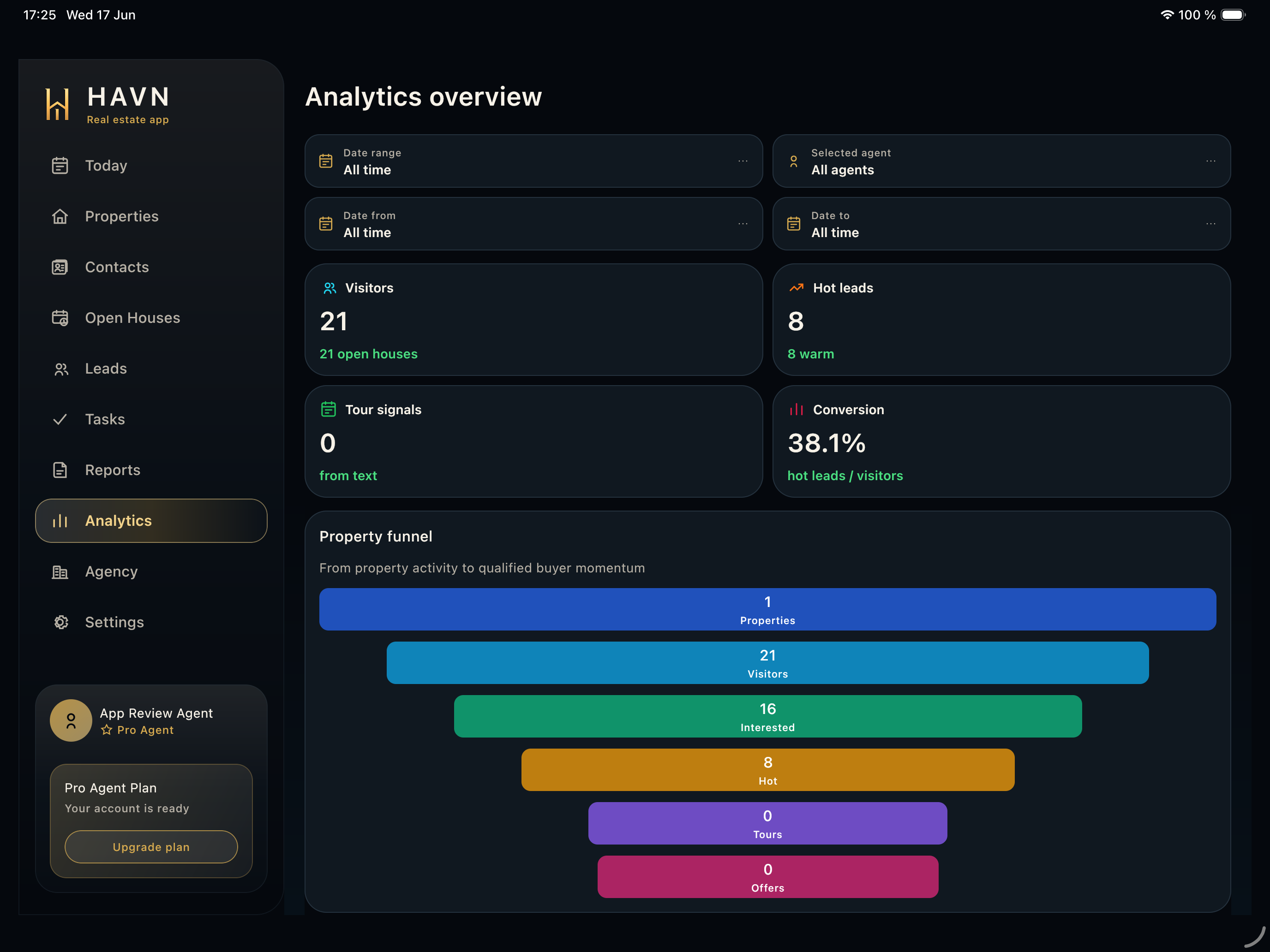 Analytics Use Analytics to review performance by date range and agent, including visitors, hot leads, tour signals, conversion, funnel, property momentum, and AI insight context.
 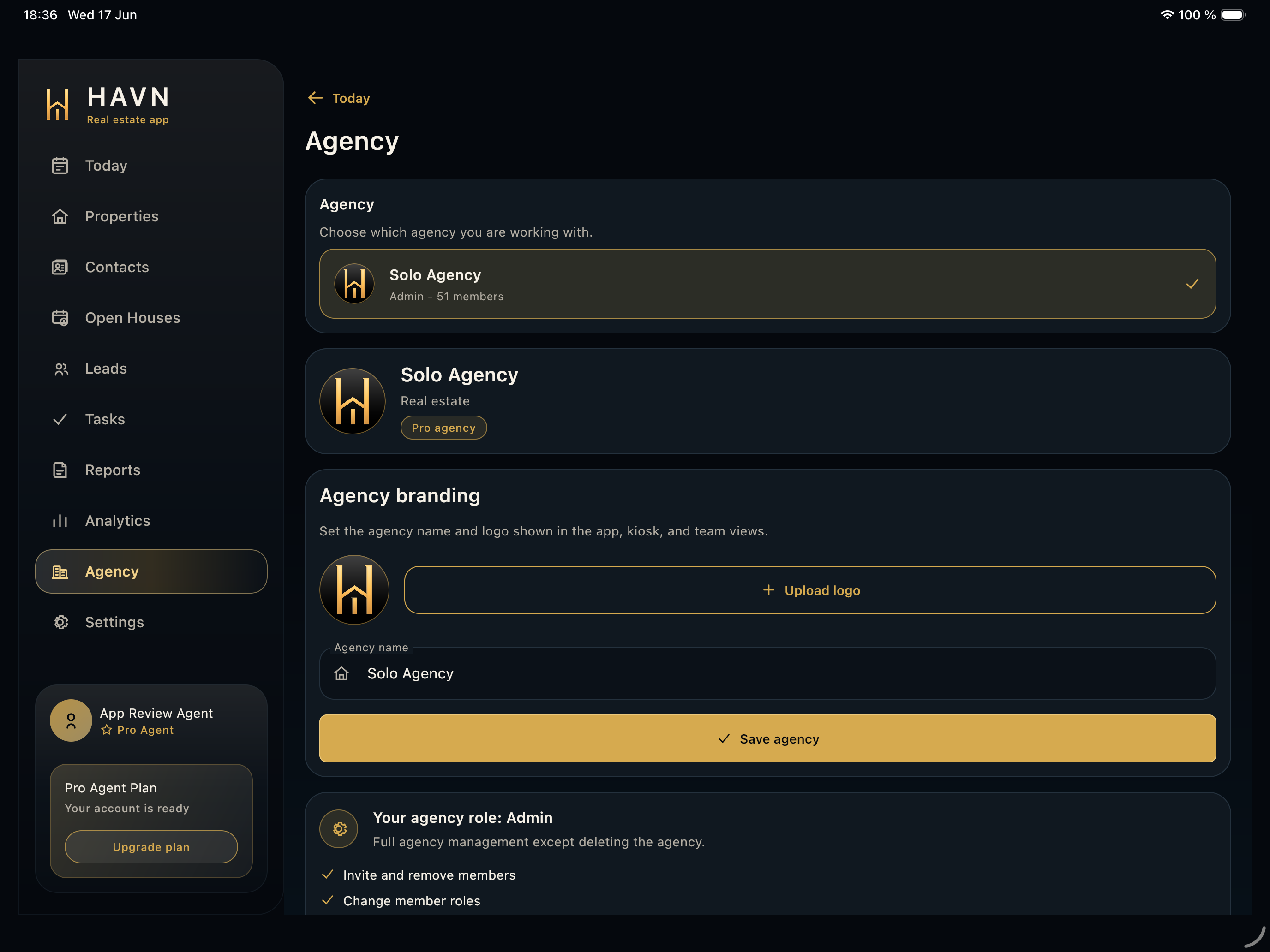 Agency Use Agency to select the active workspace, manage agency branding, invite agents, update roles, remove access, and review team context.
 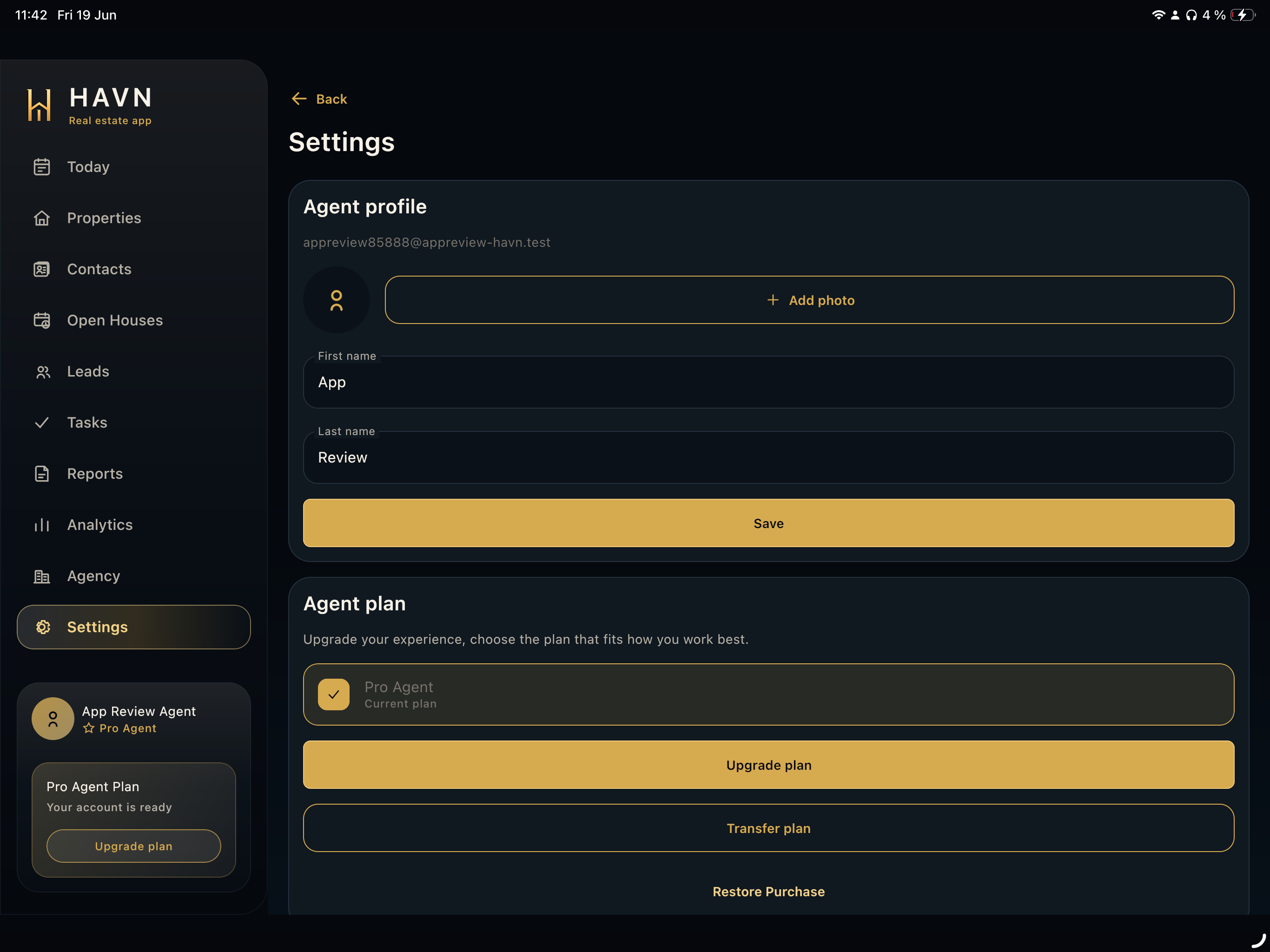 Settings Use Settings for the signed-in agent profile, photo, name, plan, purchases, notifications, quiet hours, language, preferences, legal links, support, sign-out, and account actions.
 For agency website templates, pages, sections, languages, properties, preview, publishing, and domains.
No articles found Try a broader keyword or contact support if the question is urgent.
Legal
Legal and Compliance Basics
- Apple Privacy Policy
- Apple Terms of Use
- Android Privacy Policy
- Android Terms of Use
- Web Privacy Policy
- Web Terms of Use
- Collect only the visitor information you need for the real estate service you provide.
- Tell visitors how their information will be used before they submit a sign-in form.
- Follow your brokerage policy, local law, MLS rules, and seller instructions for marketing and follow-up.
- Keep seller notes, visitor notes, and private property information professional and factual.
- HAVN docs are product guidance, not legal advice.
Support
Support
For account help, onboarding questions, data requests, or reporting issues, contact HAVN support. Include your workspace, device type, app version, and a short description of what happened.
info@havnre.app